
If an out-of-stock product page still lets shoppers add the item to their cart, or if the purchase control disappears entirely, you now have a Merchant Center problem. The compliant state sits between those two behaviors: keep the buy button visible, make it clearly disabled, and show an explicit out-of-stock message.
The product feed must declare the same availability as the landing page. That alignment matters as much as the button itself because conflicting availability information can lead to product disapprovals. Here is how to implement the control without creating a new gap between your storefront, inventory system, and feed.
The correct purchase control depends on the availability state
Out of stock is not a general label for every product you cannot ship immediately. It is a specific commercial state. When you declare an item out of stock, the shopper must not be able to buy it. The page should nevertheless retain a recognizable purchase control so the unavailable state is obvious rather than looking like a broken or incomplete product page.
Two common storefront patterns no longer satisfy that requirement:
- Removing the buy button: The shopper sees no purchase control and may not understand whether the product is unavailable, discontinued, or affected by a page error.
- Leaving the buy button active: The page claims that the item is out of stock while continuing to accept a purchase.
Use the availability state to determine both the message and the control:
| Availability | Landing-page message | Purchase control | Feed treatment |
|---|---|---|---|
| In stock | Explicitly identify the item as available | Allow the normal purchase action | Declare in stock |
| Out of stock | Explicitly say out of stock | Keep the buy button visible but disabled | Declare out of stock |
| Back order | Explicitly say back order | Accept the order only if that is the offer you intend to make | Declare back order |
| Pre-order | Explicitly say pre-order | Make the purchase experience consistent with the pre-order offer | Declare pre-order |
The important distinction is whether you are accepting an order. If customers may order an item that is not currently available, treating it as back order keeps the offer internally consistent. Do not label it out of stock in the feed while using an active Add to cart button on the page.
Implement a disabled button, not merely a gray decoration
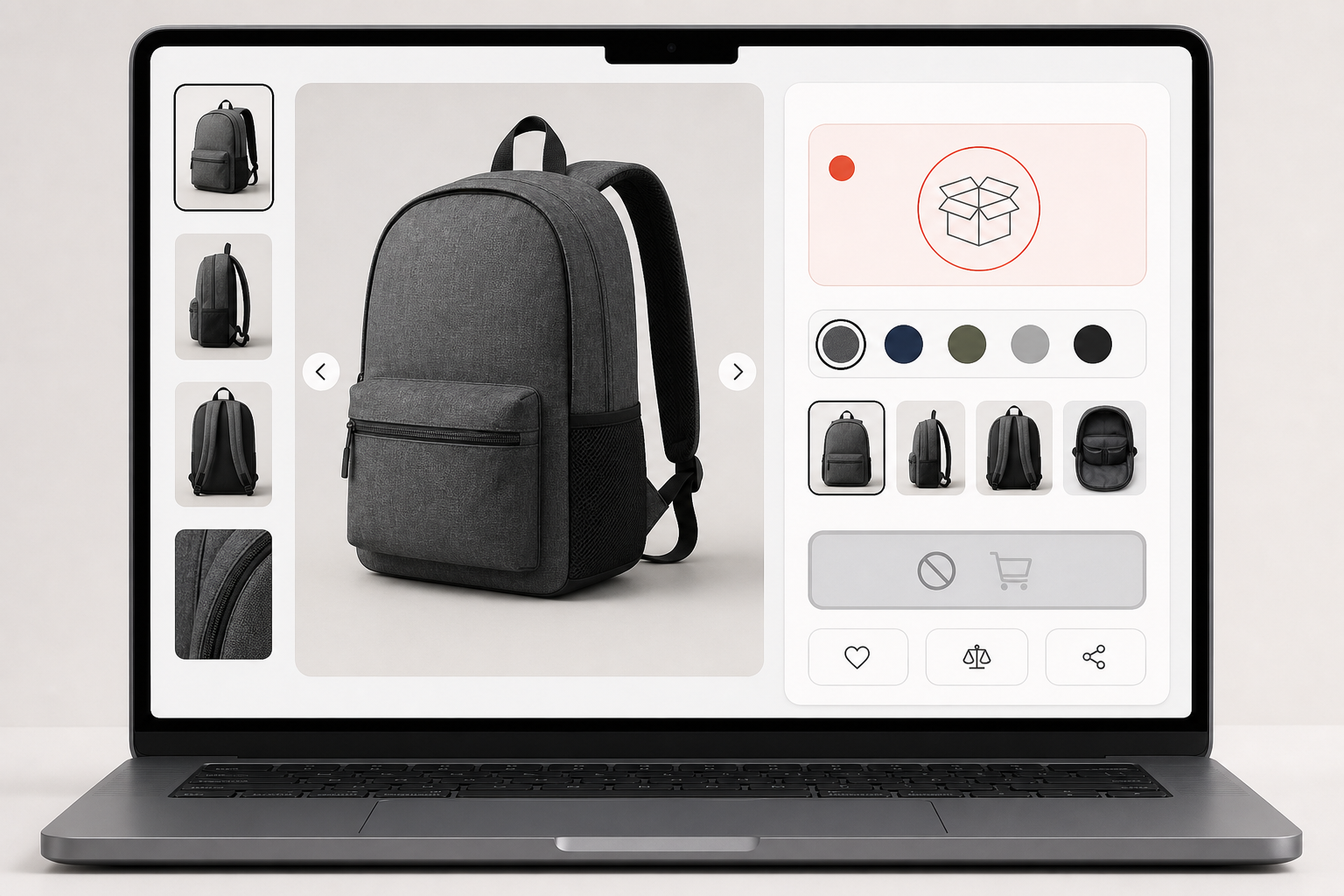
A visual change alone is not a purchase control. A button can look disabled while remaining clickable with a mouse, keyboard, or touch input. Your implementation needs to make the action inactive as well as visually unavailable.
- Calculate the product state first. Resolve the current item or selected variant to in stock, out of stock, back order, or pre-order before rendering the purchase area.
- Print a visible availability message. Place the words Out of stock near the purchase control. Do not rely on button color alone to communicate the state.
- Keep the control in the purchase area. Render the button where a shopper would normally expect to find it, with a clear disabled appearance.
- Disable the action itself. For a native HTML button, use its disabled behavior. If a custom element or link acts as the control, make sure it cannot activate through pointer, keyboard, or touch input.
- Block stale purchase requests. Treat the disabled interface as the first line of control, not the only one. The cart or commerce layer should recheck availability so an old page, direct request, or delayed script cannot create an order for an item still classified as out of stock.
- Change the commercial state when orders are allowed. If the business decides to accept orders before stock is available, update the product to back order on both the page and feed instead of quietly re-enabling an out-of-stock button.
JavaScript storefronts need one extra check: do not render an enabled button first and disable it only after inventory data arrives. Resolve the state before exposing the action, or use an inactive loading state until the product record is ready.
Products with selectable variants also need state-specific controls. When a shopper changes a size, color, or other option, update the availability message and button together. An unavailable variant should not inherit the active button of the variant that was selected previously.
Make the page and feed read from the same inventory decision

The most durable fix is not a second rule inside your product-feed exporter. It is one availability decision that every output consumes. Your catalog or inventory layer should determine the commercial state; the product template and feed generator should translate that same state into their respective formats.
Separate logic creates predictable mismatches. A storefront may switch to out of stock as soon as inventory reaches zero while a scheduled feed still contains the earlier in-stock value. A feed rule may convert low inventory to out of stock while the page continues to sell. A manually edited product badge may say back order even though the underlying record and feed still say out of stock.
Map the flow before changing the interface:
- Identify the field or rule that decides whether an order may be accepted.
- Document how each internal value becomes in stock, out of stock, pre-order, or back order.
- Use that mapping to render the visible landing-page label.
- Use the same mapping to enable or disable the buy button.
- Use the same mapping when generating the Merchant Center feed value.
- Account for cached pages, cached product data, and feed-generation delays when inventory changes.
Do not solve a disagreement by changing only the wording. If the feed says back order but your commerce system rejects every order, the label is still inaccurate. If the page says out of stock but the cart accepts the item, disabling a cosmetic button has not corrected the underlying state. The message, control, feed, and order behavior should describe one offer.
Audit transitions, variants, and alternate purchase paths
A static screenshot can confirm that a disabled button exists, but it cannot prove that the full inventory workflow is correct. Test the transitions that cause the page and feed to drift.
- Choose representative products. Include at least one product in each availability state your store supports, plus products with and without variants.
- Compare the declared states. For each selected item, check the internal inventory state, visible page message, purchase control, and exported feed value.
- Test the disabled control. Confirm that the out-of-stock button remains visible but cannot be activated with a mouse, keyboard, or touch interaction.
- Change variants. Move between available and unavailable options and confirm that the label and button change together every time.
- Test inventory transitions. Move a test item from in stock to out of stock, then to back order if your system supports it. Verify every output after each transition.
- Check delayed outputs. Revisit cached product pages and the next generated feed to find timing gaps between the storefront and Merchant Center data.
- Check the cart boundary. Confirm that the commerce layer rejects an item still classified as out of stock even when a stale page or alternate request reaches it.
- Review Merchant Center after deployment. Watch for availability-related disapprovals and trace any affected product back through the shared state mapping.
Add these cases to regression testing if inventory or product templates change frequently. The highest-value automated checks are simple: an out-of-stock item renders an explicit label, its button is disabled, its feed value agrees, and the cart cannot accept it. For a back-order item, test that the back-order label and feed state remain aligned with the intended ordering behavior.
Key takeaways
- An out-of-stock product page needs a visible but disabled buy button; neither removing the control nor leaving it clickable is the correct state.
- The page must explicitly communicate availability using a state such as in stock, out of stock, pre-order, or back order.
- The landing-page state and Merchant Center feed must agree, or the product may be disapproved.
- If you accept orders for inventory that is not currently available, classify the offer as back order and synchronize that state across the page and feed.
- A shared inventory mapping is safer than separate storefront and feed rules.
- Test state transitions and variant changes, not just the final appearance of one product page.
Start with one out-of-stock SKU that currently removes its button or leaves it active. Trace that SKU from the inventory record through the product template, cart, and feed. Once all four surfaces express the same state, turn the mapping into a reusable rule and test it across the rest of the catalog.
Leave a Reply