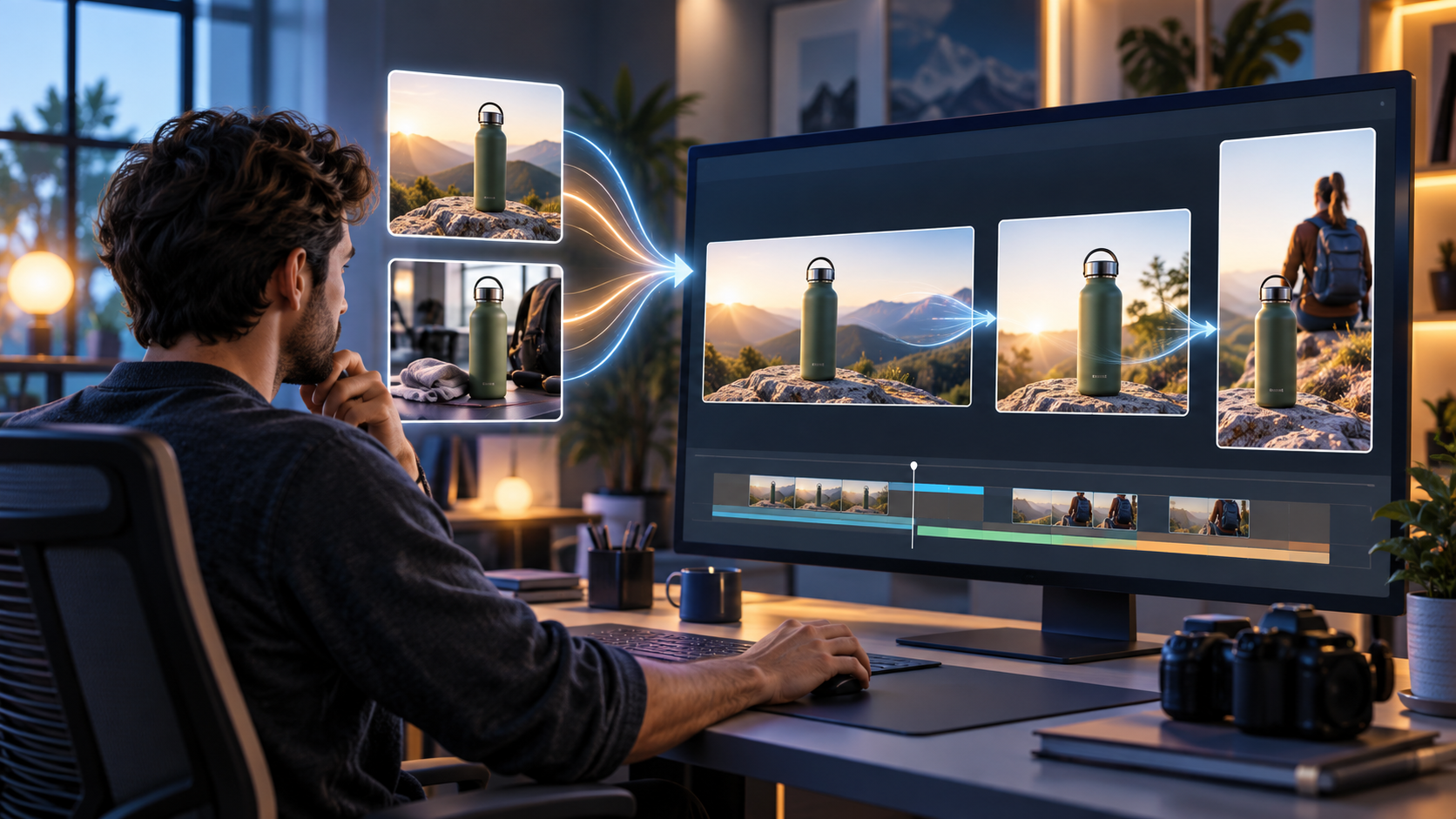
If your PMax or Demand Gen campaign has strong still images but little usable video, you no longer need to make a full production the first step. Inside Google Ads, Veo can turn two image assets into a five- or 10-second video, giving you a faster way to add short-form creative or refresh assets that have started to wear out.
That speed helps only when you give the tool a focused job. Veo can animate your images, assemble two scenes and apply text, but it cannot decide which benefit matters, repair a weak offer or make mismatched images tell a coherent story. Treat it as a rapid production layer: you supply the idea, evidence and brand discipline.
Key takeaways
- Use Veo when you have high-resolution product or service images but need a quick, short-form video asset for PMax or Demand Gen.
- Give the video one job and organize its two scenes as a simple sequence. Ten seconds is not enough for a product tour, company introduction and offer explanation at the same time.
- Produce the same concept in horizontal, vertical and square formats so the campaign has an appropriate asset for more available surfaces.
- Use the two 30-character headlines for the benefit, qualification or next action. Your business name already appears first, so repeating it consumes scarce space.
- Review results at the asset level, but do not let direct conversions become the only verdict. Delivery, engagement, clicks, website engagement and view-through conversions can reveal different parts of the asset’s contribution.
Design one idea that fits inside ten seconds
Veo’s time limit is a useful creative constraint. Before you open Asset Studio, complete this sentence: “After watching, the right customer should understand ______.” If you need more than one clause to fill the blank, the concept is probably too broad.
A short Veo asset can introduce one product benefit, make a static product image more noticeable, connect a problem image to a result image or carry a familiar campaign message into a video format. It is less suitable when the sale depends on a detailed demonstration, several conditions, an extended narrative or a person speaking directly to the viewer.
Build a two-scene bridge
The selected images appear one after the other, so their relationship has to make sense before any animation is added. Choose one of these simple structures:
- Context to product: Establish the setting in scene one, then make the product the clear focal point in scene two.
- Problem to result: Show a recognizable condition first and the completed outcome second. Use this only when the result is accurate and supported by the landing page.
- Wide view to detail: Begin with the complete product or service result, then move to the feature that explains the benefit.
- Product to action: Use the first scene to establish what is being offered and the second to support the next step with the offer or call to action.
The second image should resolve or deepen the first, not merely replace it. Two unrelated hero images may each look polished while producing a video with no narrative movement. Put them side by side before uploading them and ask whether the sequence is understandable as two static frames. If it is not, motion will not fix it.
Know when the format is the wrong fit
The image-to-video route in Google Ads does not accept images containing a face. Product images, packaging, environments, interfaces and service-result images are therefore more practical inputs than portraits or testimonial frames.
Do not contort a people-led idea to fit that restriction. If credibility depends on a customer, creator, employee or demonstrator appearing on screen, use a production method designed for that concept. Veo is valuable because it removes production friction from suitable ideas, not because every idea should be forced through it.
Prepare source images for all three video formats

The quality ceiling is set before generation begins. A high-resolution image with one obvious focal point gives Veo cleaner material to animate and gives you more room to crop. A small or already-soft image may look acceptable in an account preview but become visibly grainy when shown on a larger screen.
Google Ads supports three video shapes, and the practical goal is to create the same concept in each one:
| Format | Aspect ratio | Recommended HD dimensions |
|---|---|---|
| Horizontal | 16:9 | 1920 x 1080 |
| Vertical | 9:16 | 1080 x 1920 |
| Square | 1:1 | 1080 x 1080 |
Do not assume one composition will survive all three crops. A product pushed toward the left edge may work in a horizontal frame and become cramped or disappear in a vertical one. Either start with an image whose subject and important brand details sit comfortably near the center, or prepare crop-specific versions of the same scene.
Use an image-readiness check before generation
- Resolution: Start with the cleanest, largest approved image available. Do not enlarge a visibly soft thumbnail and expect generation to restore authentic detail.
- Focal point: Make the product, environment or service result immediately identifiable. Competing objects make the intended subject harder to read in a brief scene.
- Crop tolerance: Check horizontal, vertical and square crops before committing to the image. Keep essential product features, packaging and brand marks away from vulnerable edges.
- Sequence: Match the two scenes in visual logic. Similar lighting, color and subject scale can help the transition feel intentional.
- Copy space: Leave enough uncluttered area for overlays. Text placed over detailed packaging or a busy background may technically fit while remaining hard to read.
- Brand accuracy: Use images that represent the product or service as it is actually sold. The generated asset should not imply a feature, finish, result or offer that the landing page cannot substantiate.
- Face restriction: Remove any candidate that contains a face before you build around it, because that image cannot be used in this particular creation flow.
Prepare these inputs as a small asset set rather than hunting through the library during generation. For each scene, keep an approved horizontal, vertical and square crop with consistent naming. That makes later iterations faster and reduces the chance that one format quietly uses a different concept.
Build the asset in Google Ads, then inspect every frame

The Google Ads workflow lives in Asset Studio. Once your images and message are ready, the mechanical part is short:
- Open Asset Studio in your Google Ads account and go to Create videos.
- Select Create video from images.
- Choose a five- or 10-second duration. Use the shorter option only when the idea remains understandable without rushing the transition or text.
- Select the first image from your asset library for scene one and the second image for scene two.
- Review the two animation options supplied for each scene and choose the combination that keeps the focal subject clear.
- Select a video template and add the text overlays.
- Review the completed preview in the intended aspect ratio.
- Upload the result to a private YouTube channel or your brand’s YouTube channel, then use it as a Short in PMax or Demand Gen.
The two available animation choices may not create radically different concepts. That is another reason to solve the story in the still images first. Choose animation based on clarity: the best option is the one that directs attention to the subject without obscuring the product or making the transition feel disconnected.
Make the text earn its limited space
You receive two headlines of up to 30 characters each, while the business name is the first text shown. Repeating the brand name in either headline usually wastes space that could explain why the viewer should care.
A useful division of labor is:
- Headline one: State the single benefit, differentiator or relevant use case.
- Headline two: Add the most important qualifier, offer or next action.
Write both lines before selecting a template. Count every character, then remove words that merely announce the ad. Phrases such as “introducing,” “learn more about” and a repeated business name consume room without adding a reason to continue. The image should establish the object; the copy should supply meaning the image cannot.
Review the preview as a finished ad
A polished transition can distract you from small errors. Pause through the preview and check the things a customer will actually see:
- Does the product retain the correct shape, label, color and identifying details?
- Is the focal subject visible throughout the animation rather than only in the opening frame?
- Does the transition preserve the intended relationship between scene one and scene two?
- Can both headlines be read comfortably without competing with the busiest part of the image?
- Are the business name and headlines complementary rather than repetitive?
- Does every visual and written claim match the destination page?
- Does the crop remain clean in the specific horizontal, vertical or square version you are reviewing?
Repeat that inspection for all three formats. Approval of the horizontal asset does not prove that the vertical crop is safe. If a version weakens the subject or message, change its source crop instead of accepting it merely to complete the set.
Test the asset by question, not by novelty
Launching an AI-generated video is not itself a test. A test begins with a question that can change your next decision. You might ask whether motion improves engagement over the existing still concept, whether a different first scene produces more clicks, or whether benefit-led copy brings better website engagement than feature-led copy.
Change one creative idea at a time
- Add the first Veo concept without immediately removing your strongest existing assets. That preserves useful creative while the new asset begins receiving delivery.
- Create horizontal, vertical and square versions from the same concept so a missing format does not become the hidden reason for limited reach.
- Keep the offer and destination page stable for the first comparison. Otherwise, you will not know whether the video or the surrounding proposition changed the response.
- Name the asset so its variables remain visible. A convention such as VEO-10S-916-HOOK-A-COPY-A-V1 records the duration, ratio, hook, copy and version without requiring a separate lookup.
- For the next iteration, change either the opening image, the second scene or the overlay message. Changing all three produces another ad, but little usable learning.
This will not become a perfect laboratory comparison. PMax and Demand Gen can distribute assets across different contexts, and impressions and performance vary by channel. Keep the comparison as consistent as the campaign allows, then interpret the results as directional evidence rather than pretending every variable was controlled.
Read the full path from delivery to action
Video performance is available at the asset level. Read the signals in sequence instead of jumping directly to the conversion column:
- Impressions: First establish whether the asset received meaningful delivery. Low delivery is not enough evidence to call the creative a failure.
- Engagement: Use this to judge whether the short visual and its opening moment held attention well enough to produce a response.
- Clicks: Look for evidence that the message created enough interest for the viewer to take the next step.
- Website engagement: Check whether the post-click behavior supports the promise made in the video. Clicks followed by weak site interaction should send you back to the message-to-page alignment, not automatically to the animation.
- View-through conversions: Treat these as a sign that exposure may have assisted a later action. They add context, but they should not be treated as proof that the video alone caused the conversion.
- Direct conversions: Keep them in the evaluation, but do not demand that every five- or 10-second asset behave like a direct-response unit before it can contribute value.
The pattern between metrics tells you what to change. Delivery without engagement points toward the opening scene or visual hook. Engagement and clicks followed by weak website behavior point toward a mismatch between the ad’s promise and the landing experience. Too little delivery means you need more observation before making a creative judgment. View-through activity with few direct conversions may indicate an assisting role, but it still needs to be considered alongside the rest of the campaign.
Start with one campaign that has approved, high-quality stills and a genuine video gap. Build one two-scene concept, render it in all three ratios and write down the variable you intend to learn from before launch. Veo’s advantage is not that one generated clip replaces every production need. It is that the next relevant creative iteration becomes easier to make, inspect and improve.
References

Leave a Reply