
You want an AI agent to use the briefs, reports, presentations, and messages already inside Google Workspace. The difficult part is not giving it access. It is deciding what the agent may read, what it may prepare, and what it may change without turning a convenient workflow into an uncontrolled one.
The safest useful integration starts with one bounded job. Give the agent the minimum context needed for that job, send its output to a review destination, and add approval exactly where an action becomes consequential. Once that path works reliably, you can expand it without guessing which permission or instruction caused a problem.
Choose the job before you connect the apps
Google Workspace access can cover several materially different capabilities. An agent may be able to send email and create or retrieve documents. It may also be able to read or write spreadsheet data and extract context from presentations. That does not mean every workflow needs all of them.
Start by placing the proposed workflow in one of three operating modes:
- Context mode: The agent retrieves approved material and uses it to answer a question, summarize a campaign, or prepare an analysis. It does not change Workspace data.
- Draft mode: The agent creates a new review artifact, such as a status report, content brief, proposed spreadsheet update, or email copy. A person decides whether the draft moves forward.
- Action mode: The agent changes a shared spreadsheet, updates a working document, or sends a message. The result affects other people or systems immediately.
Use the lowest mode that completes the job. If a content strategist only needs a brief assembled from an approved deck and a campaign document, the agent does not need Gmail sending or spreadsheet write access. If an account lead needs a weekly report, the agent can read the relevant sheet and create a new review document without editing the underlying data.
This distinction prevents a common design mistake: treating app access as the workflow. Connecting Docs, Sheets, Slides, and Gmail tells you where the agent can operate. It does not define what a successful task looks like, which material is authoritative, or who is accountable for the final action.
Give every agent workflow an explicit contract
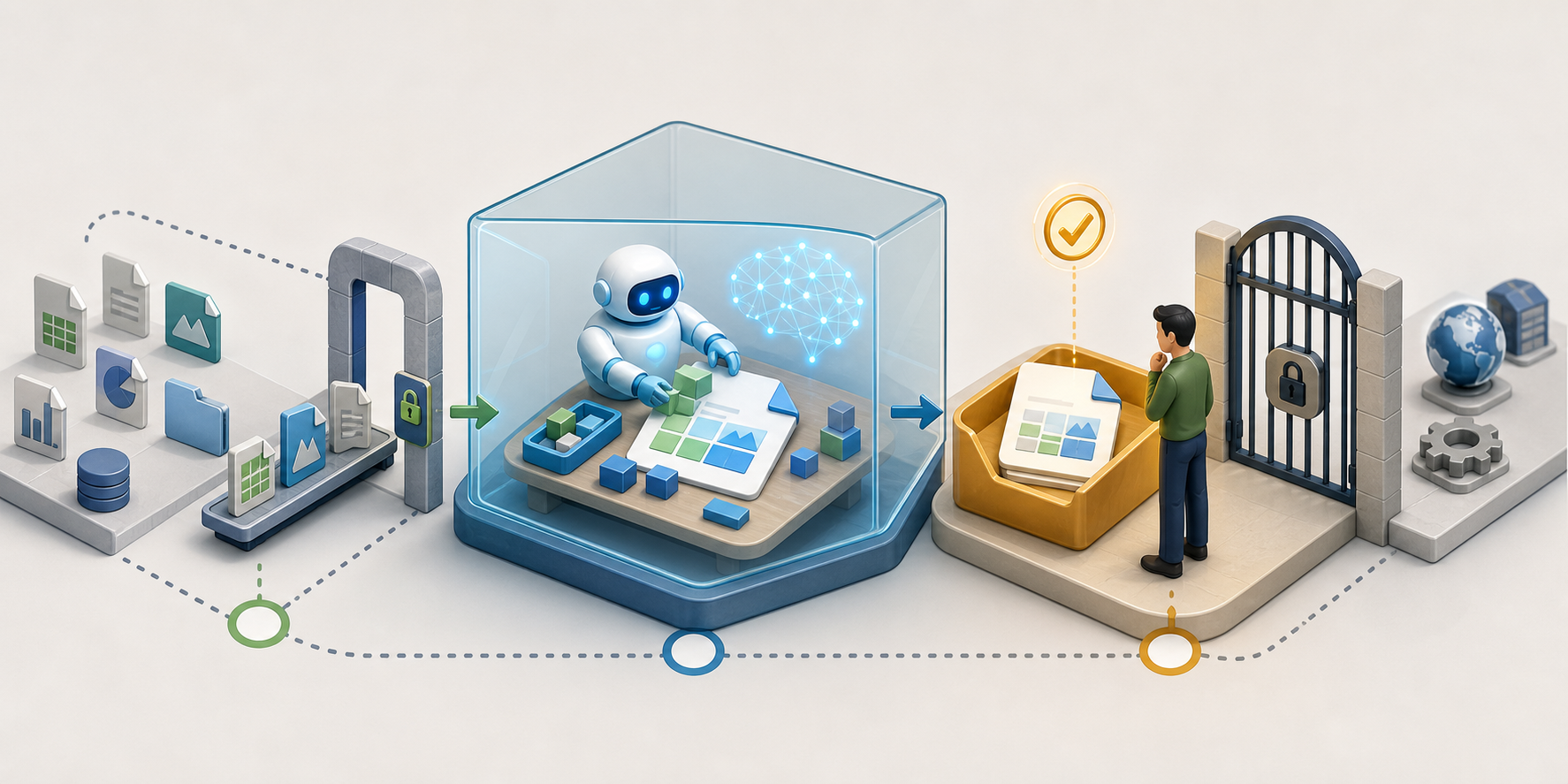
An instruction such as “prepare the client update” leaves too much unresolved. The agent still has to infer which client, which files, which reporting period, which template, and whether “prepare” means draft or send. A workflow contract removes those decisions from the model.
Define these elements before granting access:
- Trigger: State what starts the workflow. It could be a direct request, a defined status in a tracker, or another unambiguous event.
- Input boundary: Name the folders, documents, presentations, spreadsheet tabs, or approved messages the agent may use. “Search the drive” is not a useful boundary.
- Authority order: Tell the agent which artifact wins when two files disagree. For example, an approved messaging document may take precedence over an older presentation.
- Transformation: Describe the work to perform: extract facts, compare values, draft copy, populate a template, or identify missing information.
- Output destination: Specify whether the result belongs in a new document, a review queue, a designated spreadsheet area, or a proposed email.
- Approval rule: Identify which person or role must approve the result before it is sent or written into a shared source of truth.
- Failure behavior: Tell the agent to stop and report missing, conflicting, or ambiguous inputs instead of filling gaps with plausible text.
A bounded reporting workflow might read like this: use only the named campaign sheet and approved strategy documents; create a new status report in the review location; show which artifacts supplied each material claim; list missing fields separately; do not edit the source sheet or send any message.
That contract is more valuable than a long general prompt. It gives you observable checkpoints. If the result is wrong, you can determine whether the problem came from retrieval, conflicting context, transformation, or an unauthorized action. Without those boundaries, every failure looks like a vague “AI problem.”
Treat reading, drafting, and committing as different risks
A summary can be corrected before anyone uses it. A sent email or an incorrect update to a shared spreadsheet can affect colleagues, clients, and downstream work immediately. Your controls should become stricter as the agent moves from observing information to committing a change.
| Operating mode | Agent behavior | Sensible default control |
|---|---|---|
| Read | Retrieve approved documents, presentation context, or spreadsheet values | Limit retrieval to named locations and require a record of the artifacts used |
| Draft | Create a new review document containing proposed copy, analysis, or changes | Write only to a designated review destination and mark the result as a draft |
| Commit | Send a message or alter shared working data | Validate the target, require explicit approval, and record the completed action |
Keep the permission set aligned with the mode. A read-only research workflow should not retain write access “in case it is useful later.” An agent that drafts outreach copy does not need permission to send it. A reporting agent should not be able to edit every spreadsheet merely because its assigned report uses one of them.
For workflows that eventually need action access, put the approval gate after the draft is visible but before the change is committed. The reviewer should be able to inspect the destination as well as the content. Correct copy addressed to the wrong recipient is still a failed action. Correct data written into the wrong tab or field can be equally disruptive.
Use these controls at the action boundary:
- Restrict access to the smallest useful set of folders, files, spreadsheets, and communication functions.
- Prefer creating a new review artifact over overwriting an existing one.
- Show the intended recipients, file, tab, and destination before approval.
- Require a fresh approval when the content or destination changes after review.
- Record what the agent read, what it produced, who approved it, and what action followed.
- Maintain a clear way to pause the workflow and revoke its access when behavior is unexpected.
Do not use a broad permission as a substitute for workflow design. If the connector cannot isolate the resources or actions your job requires, keep the workflow in draft mode. Manual transfer is safer than granting access whose consequences you cannot bound.
Make Workspace context precise and auditable

Connecting an agent to more files does not automatically improve its answer. Extra context can introduce duplicate documents, outdated messaging, conflicting numbers, and material that belongs to a different client or campaign. Retrieval needs its own design.
Build a small context map for each workflow. Name the approved inputs, what each one contributes, and how conflicts should be handled:
- Documents: Identify the approved brief, policy, template, or messaging file. Do not rely on a title that could match several drafts.
- Presentations: Specify the deck and the parts relevant to the task. If the workflow depends on notes, links, or material outside visible slide text, verify that the integration actually exposes it before relying on it.
- Spreadsheets: Name the tab and fields the agent should interpret. Explain unusual headers, calculated fields, status values, and blank cells instead of expecting the agent to infer their business meaning.
- Email: Separate retrieving approved correspondence from sending a new message. Define which conversations may supply context and which addresses may receive output.
A spreadsheet deserves particular care. It may look structured to a person while still being ambiguous to an agent. Repeated header rows, unlabeled columns, free-form notes, mixed date formats, and formulas beside manual values can all change what a cell means. Clean the specific input area or provide an explicit field map before using it for an automated decision.
Require the output to preserve a source trail. For a report or brief, the agent should name the document, deck, or spreadsheet area behind each material section. It should also flag conflicts instead of silently choosing whichever version it retrieved first. This makes review faster and gives you a practical way to correct the context map.
A useful instruction pattern is: Use only the listed Workspace artifacts. For each material claim, identify the artifact that supports it. If approved inputs conflict or required information is absent, place the issue in a review list and do not resolve it by assumption.
That requirement matters for content and search workflows. An agent can assemble a polished brief from weak or outdated inputs just as easily as it can assemble one from approved material. Fluency is not provenance. Before a draft enters your publishing, SEO, AEO, or GEO process, a reviewer should be able to see which business facts and positioning statements shaped it.
Key takeaways
- Start with one bounded business job, not a blanket connection to every Workspace app.
- Choose context, draft, or action mode and grant only the access that mode requires.
- Define the trigger, approved inputs, authority order, output destination, approval rule, and failure behavior before launch.
- Put human approval immediately before an email is sent or shared data is changed.
- Require a source trail so reviewers can connect the agent’s output to the document, presentation, or spreadsheet data behind it.
- Expand access only after the existing workflow is reliable, reviewable, and easy to stop.
Use a controlled rollout sequence
Your first workflow should be useful but recoverable. A strong starting point is a context or draft task that reads from a small approved collection and creates a new review document. A poor starting point is autonomous external email or unrestricted editing of a shared operational spreadsheet.
- Map the manual task. Write down what starts it, which artifacts a person consults, what judgment is required, and where the finished work goes.
- Remove unnecessary access. If an app or folder does not contribute to that exact path, leave it disconnected.
- Run in context mode. Check whether the agent retrieves the correct material and reports conflicts or missing information.
- Add a review artifact. Let the agent create a new document or other staged output without altering the underlying sources.
- Evaluate human corrections. Separate factual corrections from tone changes and formatting preferences. Factual corrections indicate a context or interpretation problem.
- Add one action boundary if needed. Introduce a single approved send or write operation, with the destination visible before commitment.
- Expand one dimension at a time. Add another data source, destination, or action only after you can explain the current workflow’s behavior.
Measure reliability, not activity
Counting generated documents or processed requests tells you how busy the integration is, not whether it is helping. Track signals that expose the quality of the workflow:
- Completion without repair: Did the workflow reach the intended review destination without someone rebuilding the result?
- Correction burden: Which facts, recipients, destinations, or spreadsheet interpretations required human changes?
- Context accuracy: Did the agent use only the approved artifacts and identify conflicting information?
- Action accuracy: When an action was approved, did it affect the intended message, file, tab, or field?
- Traceability: Can a reviewer reconstruct the inputs, output, approval, and final action?
- Safe stops: Did the agent halt when information or authority was missing instead of improvising?
Pick one recurring workflow and write its contract before connecting anything else. If you cannot state exactly what the agent may read, where it may write, and when it must stop, keep the task in draft mode. That boundary gives you a useful integration now and a defensible path to broader automation later.
References
- CrushPress.AI — Maximize Productivity with Google Suite Integration for Agents
- CrushPress.AI — Empower Your Workflow with Google Suite Integration for Agents
Leave a Reply