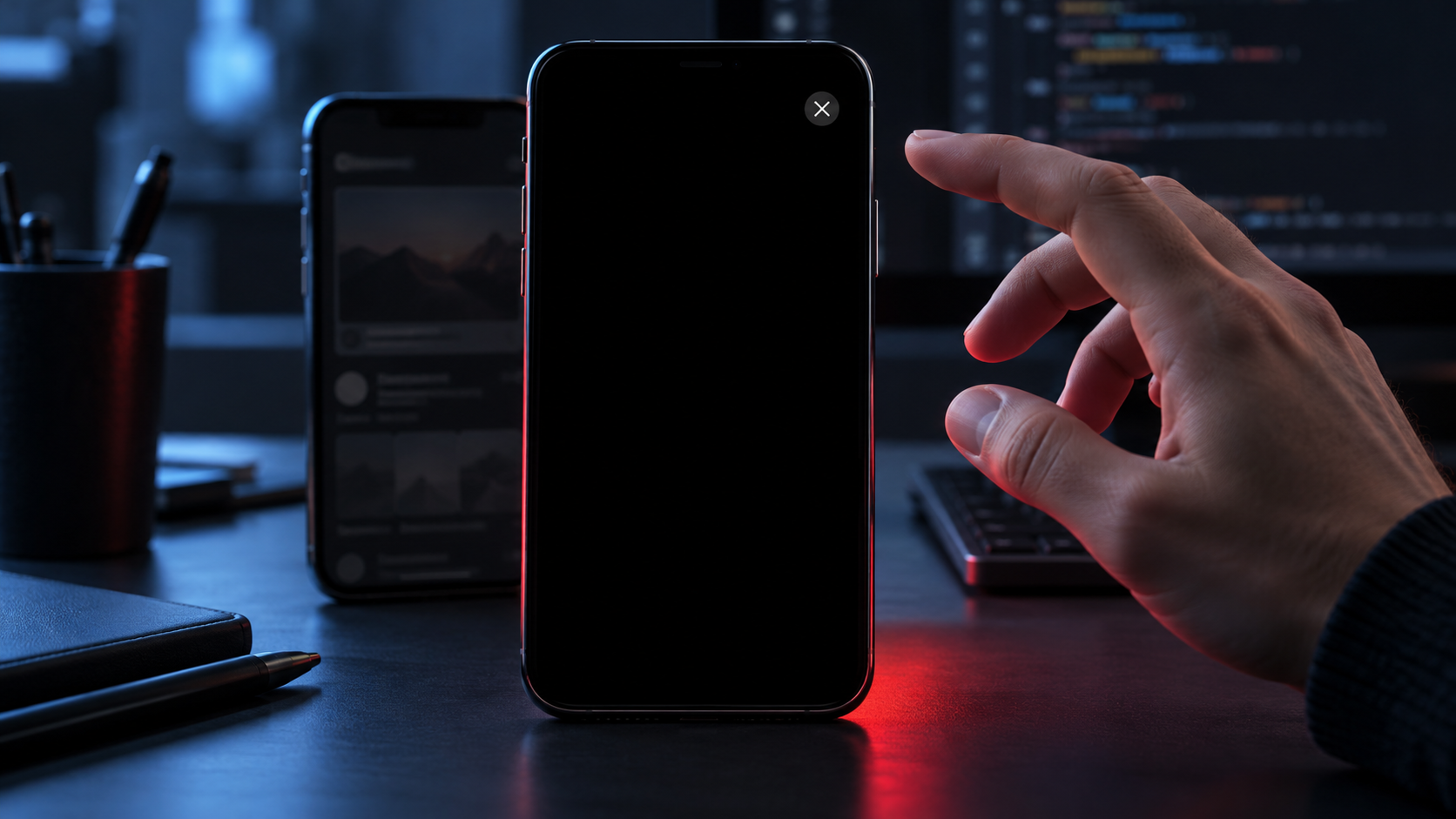
When people report that your app “freezes” immediately after a video ad, you need to answer two questions quickly: is your own release broken, and can you stop more users from entering the same dead end?
The documented AdMob failure can replace an interstitial video with a solid black screen and leave its close button unresponsive. It affects iOS and Android, and the only reported escape for the user is to force-close the app. Here is how to confirm the pattern, contain it, measure the damage, and restore the placement without making a rushed code change.
Know the boundary of the AdMob failure
The confirmed failure is narrow enough to guide your response but serious enough to justify immediate action. An interstitial video fails to render, the user sees a black screen, and the close control does not work. Reports cover both iOS and Android applications.
AdMob itself may remain accessible while publishers encounter error messages, high latency, or other unexpected behavior. At the reported stage of the incident, Google was investigating, had announced no estimated resolution time, and offered no workaround for the failed interstitial.
That boundary matters. The known issue concerns interstitial video ads; it does not establish that every AdMob format or every placement is failing. Do not disable unrelated inventory merely because it uses the same ad platform. Equally, do not dismiss the incident as an iOS view-controller problem or an Android rendering regression when the same symptom is appearing across both operating systems.
There is also an important distinction between a vendor workaround and publisher containment. Google may have no way for you to repair the ad after it becomes a black screen. You may still be able to prevent your app from requesting or presenting the affected placement through remote configuration, a feature flag, or an emergency release.
Confirm the pattern before changing your SDK or app code
A black screen is a symptom, not a diagnosis. Treat the AdMob incident as a strong lead, then collect enough evidence to distinguish it from your own navigation, lifecycle, or rendering bug.
- Identify the exact trigger. Record the screen, user action, and interstitial placement immediately preceding the black screen. “The app went black” is not enough to isolate an ad failure.
- Capture the environment. Preserve the app version, build number, operating system, device model, timestamp with time zone, and network condition. Ask support teams to collect the same fields from new reports.
- Inspect the session sequence. Determine whether the app process remains active behind a full-screen ad surface, whether the close control appears, and whether tapping it produces any response.
- Review your ad events. Look for the request, load, presentation, dismissal, and failure events your integration already records. Event names vary by SDK and implementation, so use your own instrumentation rather than assuming a callback was fired.
- Test the path without the placement. If the next screen works when the interstitial is suppressed in a controlled environment, the evidence points toward the ad boundary rather than the destination screen.
- Check both mobile platforms. Matching behavior on iOS and Android strengthens the case for a shared service or creative-delivery problem. A report from only one platform does not rule out the AdMob incident, but it does justify checking platform-specific code.
Use your existing test environment and approved ad-testing setup when reproducing the flow. An unsuccessful reproduction does not prove that production is healthy: ad delivery varies, and the affected video may not appear in every request.
Avoid upgrading, downgrading, or replacing the mobile ads SDK solely because the visible symptom resembles an integration bug. Those changes introduce a second variable and may not affect a service-side outage. First establish whether the failure aligns with the known interstitial pattern and whether suppressing that placement restores the user journey.
Contain the user trap at the placement level

Your immediate goal is not to recover every missed impression. It is to stop a full-screen dependency from making the rest of the app unreachable.
- Use a remote kill switch if one exists. Stop invoking the affected interstitial placement without disabling ad formats that are still working.
- Fail open at the gate. If the interstitial sits between a completed action and the next app screen, let the user continue without the ad while the placement is suppressed.
- Do not create an automatic retry loop. Repeatedly requesting another interstitial at the same transition can send the user back into the broken experience.
- Remove the placement from relaunch-sensitive paths. A person who force-closes the app should not immediately encounter the same interstitial after reopening it.
- Consider an emergency release when server-side control is unavailable. Keep the change narrow: bypass the affected placement rather than combining the response with an SDK migration or unrelated feature work.
- Reassess paid acquisition into an unavoidable broken path. If a high-traffic onboarding or conversion flow cannot bypass the interstitial, continuing to drive users into it may waste campaign spend and amplify abandonment.
Suppression has an obvious monetization cost, but leaving the placement active can cost the entire session. The outage can affect ad engagement and publisher revenue while also increasing user frustration and app abandonment. Make that tradeoff explicitly rather than allowing a revenue-protection default to decide it for you.
Give support teams a precise response they can use: “A video ad may display a black screen with a close button that does not respond. Close the app completely and reopen it. We are temporarily limiting the affected ad placement while the provider investigates.”
Do not promise that reopening permanently fixes the issue; force-closing only gives the user a way out of the current screen. Do not publish a resolution time that Google has not supplied. If you cannot suppress the placement, tell users where it occurs so they can make an informed choice about using that path.
Measure the blocked journey, then restore cautiously
Look beyond crash-free sessions
A trapped interstitial may not look like a conventional application crash in your monitoring. The user can leave by force-closing the app, so a healthy crash-free metric is not proof that the experience is healthy.
Build the incident view around the user journey: ad presentation, expected dismissal, arrival at the next screen, session termination, and subsequent reopen. Compare the affected period with your normal baseline, segmented at least by placement, operating system, and app version. Use your established timing baseline rather than inventing a new universal timeout during the incident.
- Count interstitial presentations that are not followed by the expected dismissal or next-screen event.
- Track exits and rapid reopens after an interstitial presentation.
- Review support tickets and app-store feedback for black-screen, frozen-ad, and unresponsive-close descriptions.
- Watch requests, impressions, engagement, and revenue by the affected placement; the outage may alter each metric differently.
- Preserve a timeline of configuration changes, releases, reports, and observed recovery so that later analysis can separate the outage from your mitigation.
Be careful with interpretation. A lower impression count after you suppress a placement is expected. A decline before suppression may reflect failed rendering or disrupted sessions, but the available incident information does not establish exactly how every AdMob reporting metric records the failure.
Require evidence before full restoration
Do not re-enable the placement merely because complaints slow down. Confirm that Google has marked the incident resolved, then validate the affected journey on both iOS and Android. Check that the video renders, the close control responds, the dismissal event arrives, and the user reaches the intended next screen.
If your controls allow it, restore the placement to a limited share of traffic first. Watch the same presentation-to-dismissal and next-screen signals used during triage. Expand only when those signals return to their ordinary baseline. If limited restoration reproduces the black screen, disable the placement again and preserve the new session evidence.
Key takeaways
- The known AdMob failure turns an interstitial video into a black screen with an unresponsive close button on iOS and Android.
- Force-closing the app is the only reported way for a user to escape the affected screen; it is not a permanent fix.
- At the reported stage, Google was investigating and had provided neither a workaround nor an estimated resolution time.
- Confirm the placement-level pattern before changing your SDK, then suppress only the affected interstitial where your controls permit.
- Measure dismissal and journey completion rather than relying on crash metrics alone.
- Restore the placement only after a confirmed resolution and successful validation on both mobile platforms.
Once the incident is behind you, add one durable control: every full-screen third-party placement should have a remotely operated off switch. The next provider failure should require a configuration change, not an emergency app release, before you can give users their app back.
References

Leave a Reply