
You want more people to walk into a location, request directions or contact the business while they are nearby. The difficult part is making sure Performance Max is optimizing for those local actions rather than treating the campaign like a general online acquisition campaign.
Local customer optimization gives you a more focused option, but eligibility depends on how the campaign is built. Before you turn it on, check the campaign goals and product-feed setup. That decision will tell you whether to update the existing campaign or create a separate store-goals campaign.
What Local customer optimization changes
Local customer optimization is available for Performance Max campaigns with store goals. When enabled, it prioritizes delivery toward nearby people who appear ready to visit, navigate to or contact a business. That includes people planning trips, actively navigating or searching for nearby businesses across Google Maps, Waze and local formats on Google Search.
The important word is prioritizes. This is an automated delivery preference for high-intent local customers, not a promise that every impression will produce a store visit. Your selected store goals still determine what the campaign is trying to accomplish.
Use the setting when the campaign’s primary job is generating physical-location outcomes. Store visits, direction requests and store sales are the relevant goal types named for this setup. If your real priority is an online purchase or a product-feed sale, this isn’t a switch to add casually to the same campaign.
Check eligibility before changing the campaign
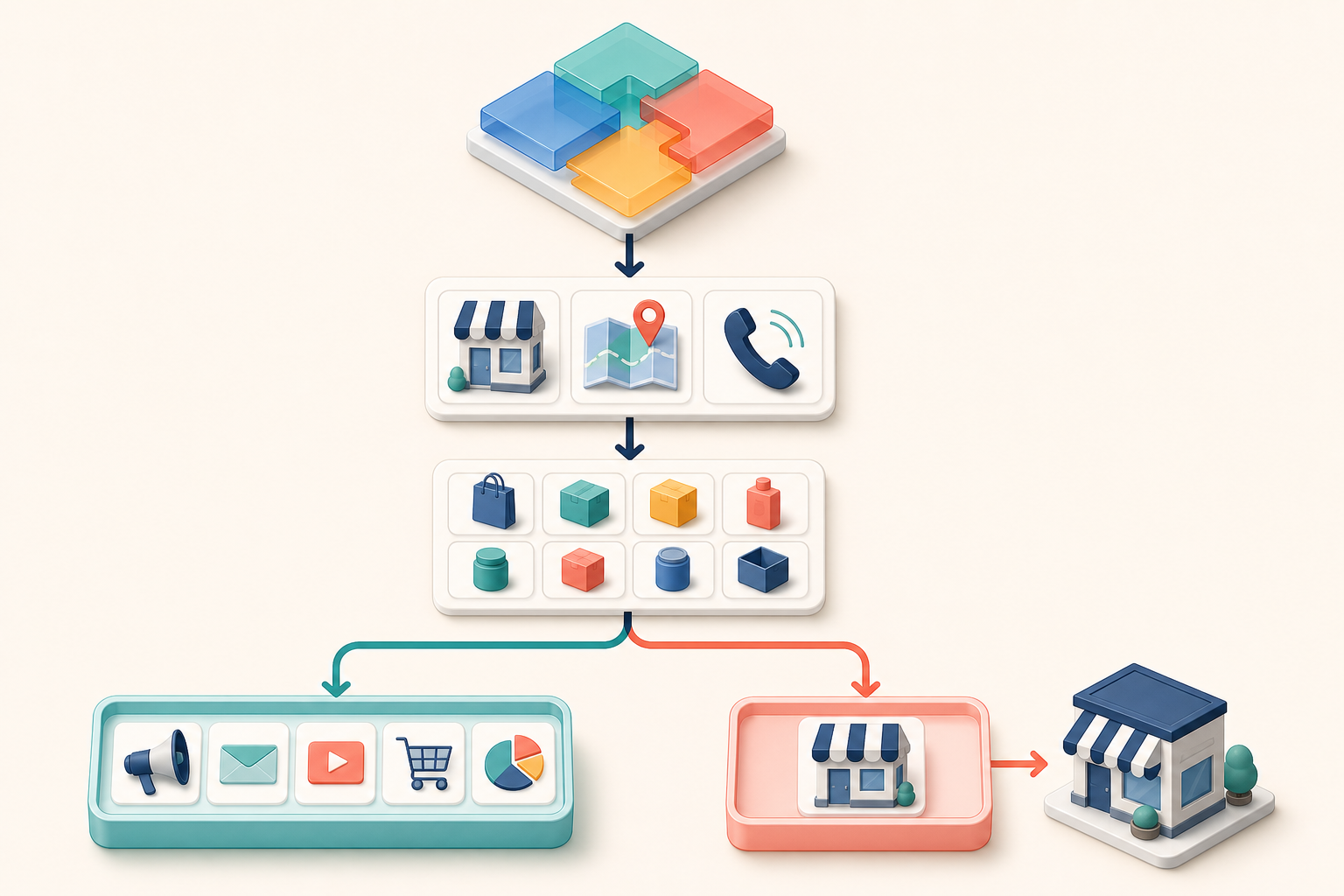
The main constraint is campaign architecture. Local customer optimization doesn’t support Merchant Center, and it can’t be used in a Performance Max campaign that includes Merchant Center products or online conversion goals.
| Your current setup | Can you enable it directly? | Best next move |
|---|---|---|
| Store-goals campaign without Merchant Center products or online conversion goals | Yes | Enable the setting in the campaign and keep the store goals aligned with the actions you value. |
| Performance Max campaign using Merchant Center products | No | Create a separate store-goals campaign if you need to preserve product advertising. |
| Performance Max campaign with online conversion goals | No | Separate the local objective from the online objective before enabling local optimization. |
| Campaign without an eligible offline store goal | Not yet | Decide which store outcome the campaign should optimize for and configure that goal first. |
You could remove a Merchant Center product feed to make the campaign eligible, but that is a consequential change. It removes the product-feed component from that campaign. Unless you intentionally want to stop using it there, the cleaner choice is a separate Performance Max campaign dedicated to store goals.
The same reasoning applies to online conversion goals. Combining online and offline outcomes may look convenient, but this feature requires a store-focused campaign. Splitting the objectives also makes the business question clearer: is the local campaign producing enough valuable store activity to justify its budget?
How to enable the setting
The setup path depends on whether you are creating a campaign or modifying one that already exists.
For a new campaign:
- Create a Performance Max campaign for store goals.
- Select the relevant offline conversion goal, such as store visits, directions or store sales.
- Find the Local customer optimization toggle during campaign setup.
- Enable the toggle and complete the remaining campaign settings.
- Confirm before launch that the campaign doesn’t contain Merchant Center products or online conversion goals.
For an existing eligible campaign:
- Open the Performance Max campaign settings.
- Go to Budget and bidding optimization.
- Find Local customer optimization.
- Enable the setting and save the campaign.
Once saved, Performance Max can begin prioritizing nearby users with stronger local intent. The setting is reversible: you can turn it off later to return the campaign to standard Performance Max behavior.
If the toggle doesn’t appear, don’t assume the account lacks access. First check the structural blockers: the wrong campaign goal, an online conversion goal or Merchant Center products. The setting belongs to eligible store-goals campaigns, so campaign composition is the first place to troubleshoot.
Keep local and ecommerce objectives from competing
A store-goals campaign and an ecommerce campaign answer different questions. One tries to generate actions connected to a physical location. The other tries to produce online outcomes, often with products supplied through Merchant Center. Local customer optimization forces you to make that distinction explicit.
Before creating a separate campaign, write down the job of each campaign in one sentence. If the sentence contains both “drive store visits” and “sell products online,” the objective is still mixed. Assign each campaign a primary outcome that matches its eligible configuration.
- Store campaign: Use store goals and Local customer optimization to pursue nearby, high-intent customers.
- Online campaign: Retain Merchant Center products or online conversion goals where ecommerce outcomes are the priority.
- Budget decision: Give each campaign an intentional allocation rather than allowing a newly separated local campaign to inherit spend without review.
- Reporting decision: Evaluate the local campaign against store actions, not against an online campaign’s purchase objective.
This separation doesn’t guarantee better performance. It does prevent a basic measurement error: declaring the store campaign weak because it didn’t behave like an ecommerce campaign, or calling it successful because it generated activity unrelated to the physical-location objective.
Judge the feature against the store action you selected

Turning on the toggle is an implementation step, not the success criterion. The outcome that matters is whether the campaign produces more of the store action your business values at an acceptable cost.
Record the campaign state before enabling the feature: selected store goals, budget, Merchant Center status and any online goals. Then note the date of the change. Without that record, later analysis can confuse a goal change, feed removal or budget adjustment with the effect of local optimization.
- Choose the decision metric first. Use the selected store outcome, such as directions, store visits or store sales, rather than a convenient top-line activity metric.
- Avoid bundling unrelated changes. If possible, don’t restructure goals, alter the budget and enable Local customer optimization at the same moment. Multiple changes make the result harder to interpret.
- Review the mix of store actions. More direction requests may be useful, but they aren’t automatically equivalent to more store sales. Interpret each action according to its business value.
- Compare like with like. Keep the campaign’s purpose, geography and operating conditions in mind when reviewing performance. A directional before-and-after comparison can inform a decision, but it doesn’t prove that the setting caused every change.
- Use the off switch deliberately. If the campaign no longer needs local-intent prioritization, disable the feature and return to standard Performance Max behavior rather than leaving an obsolete setting active.
Your review should end in a concrete decision: keep the feature enabled, revise the store-goal campaign, adjust how budget is divided between local and online objectives, or turn the feature off. “Monitor performance” isn’t a decision unless you have already named the outcome that will change your course.
Key takeaways
- Local customer optimization is for Performance Max campaigns built around store goals.
- It prioritizes nearby people showing local intent across Google Maps, Waze and local Google Search formats.
- Merchant Center products and online conversion goals make a campaign ineligible.
- A separate store-goals campaign is usually the safer structure when you need to preserve ecommerce advertising.
- New campaigns expose the toggle after you choose eligible offline goals; existing campaigns place it under Budget and bidding optimization.
- The setting can be turned off to restore standard Performance Max behavior.
Start with the eligibility check, not the toggle. If your current campaign mixes store and online objectives, separate those jobs first. You will get a cleaner setup, a clearer budget decision and a result you can judge against the local action that actually matters.
References

Leave a Reply