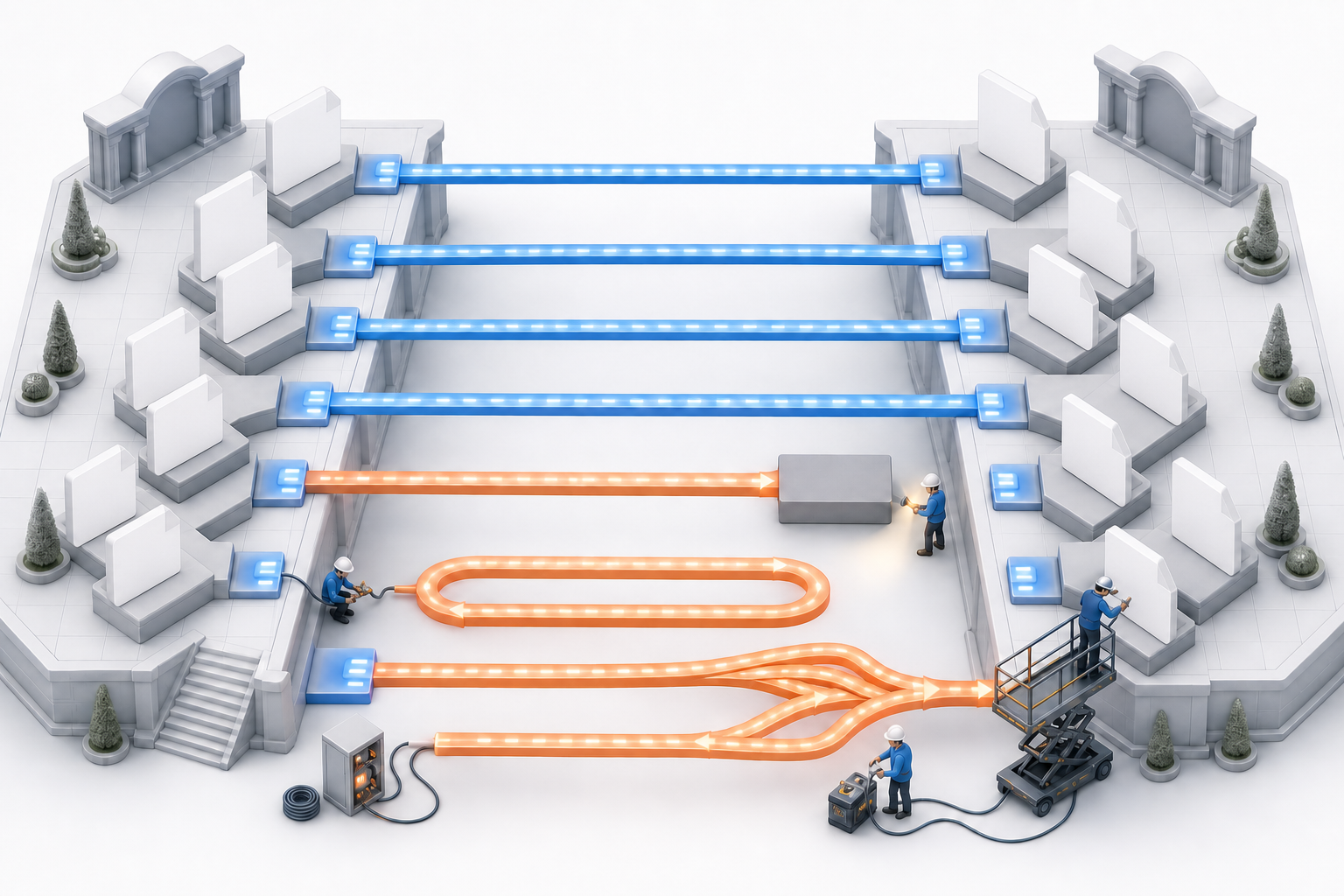
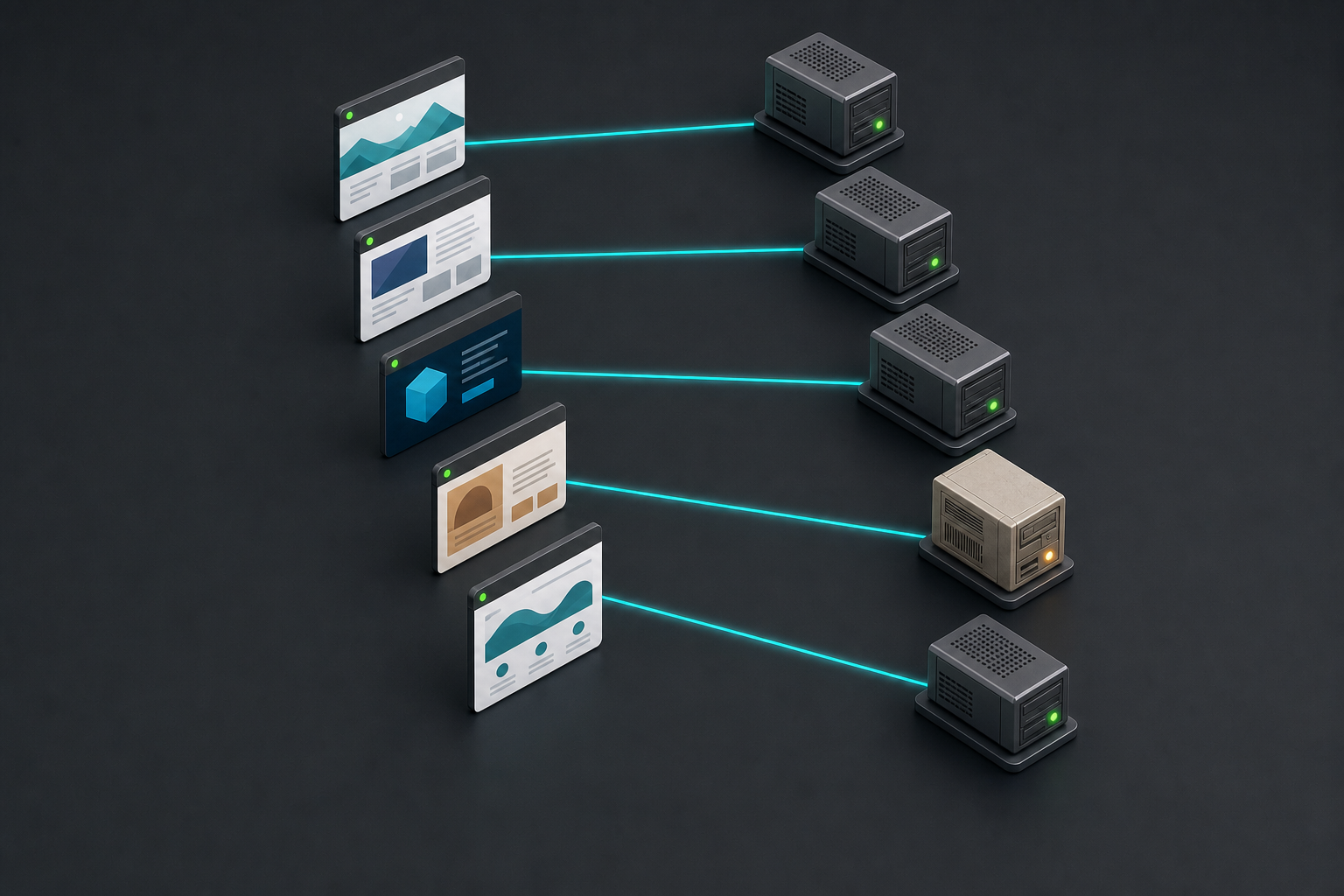
Three Google updates reported by CrushPress.AI affect different points in a publisher’s measurement workflow: assessing search demand, checking whether pages can appear in search, and tracking visits after a click.
Together, the changes make some analysis easier, but they also underline an important distinction: demand, indexability, and on-site traffic are separate signals. Publishers need to read them in sequence rather than treating any one report as a complete account of search performance.
Key takeaways
Google Trends now offers preceding-period comparisons that can put changes in search interest into context.
Search Console’s page indexing report resumed updating after a reported three-week delay, restoring fresher diagnostic information.
Google Search now sends AMP visitors to publisher-hosted pages instead of presenting cached pages within Google’s AMP viewer.
Google reportedly characterized the AMP change as a delivery and measurement update, not a ranking change.
Google Trends adds context before content decisions
Google Trends sits near the beginning of the measurement process. It indicates relative search interest, helping publishers evaluate whether attention around a term or topic is gaining momentum, declining, or following a recurring pattern.
CrushPress.AI reported that new controls above the Trends timeline can surface changes for periods such as week over week, month over month, and selected year-over-year comparisons. A preceding period can also be overlaid on the chart with a comparison line. This reduces the work required to establish a historical baseline before interpreting a movement.
The practical benefit is better timing context. A rise in current interest is more meaningful when compared with the immediately preceding interval, while a year-over-year view can help reveal whether apparent momentum may instead reflect seasonality. Trends still addresses audience interest rather than the performance of a publisher’s individual pages, so its findings should guide investigation rather than serve as traffic or ranking evidence.
Fresh indexing data restores a missing diagnostic layer
Search Console answers a different question: whether Google can find and index pages on a particular site. Its page indexing report separates indexed and non-indexed pages, provides reasons pages may not be indexed, and can display impressions alongside the indexing chart, according to the source report.
CrushPress.AI reported that this report had remained stuck on June 11, 2026, for roughly three weeks. As of Friday, July 3, it was displaying information through June 29. The refresh matters because an outdated diagnostic view can make a recent publishing, crawling, or indexing problem difficult to distinguish from reporting latency.
The episode also offers a measurement caution. When a reporting interface is delayed, the age of its latest data should be checked before teams infer that a recent technical change caused an indexing movement. With fresher data available, publishers can return to examining affected pages and the reasons Search Console assigns, while still separating reporting status from the underlying indexing status.
Direct AMP visits simplify the post-click measurement path
The AMP update concerns what happens after a searcher selects a result. CrushPress.AI reported that Google Search now directs AMP users to the publisher-hosted AMP page rather than a cached version displayed through Google’s AMP viewer. Google told the publication that the change should simplify analytics and tracking while reducing some maintenance associated with supporting AMP content.
This shift can make the measurement path easier to understand because the destination is again the publisher’s own host. It does not, however, establish that AMP pages will gain more visibility. The report explicitly said Google described the change as unrelated to ranking and said the serving and ranking treatment of AMP in Search and Discover would remain the same.
The distinction is especially important because AMP’s broader search role has already diminished. The source noted that AMP no longer receives preferential treatment in Top Stories and that such pages are encountered less often than before. The update therefore looks less like a revival of AMP as an SEO advantage and more like a cleanup of delivery, ownership, and analytics for publishers that continue to use the format.
A more coherent search measurement workflow
Read together, the updates describe three successive layers of analysis. Trends helps establish whether an audience is searching for a subject. Search Console helps determine whether relevant pages are eligible to be discovered through indexing. Publisher analytics then records what visitors do after reaching the site, with the new AMP routing potentially making that last step less complicated.
This sequence helps prevent common category errors. Increasing search interest does not prove that a site is indexed for the topic. Successful indexing does not guarantee impressions or visits. Cleaner AMP analytics does not indicate a ranking improvement. When the signals diverge, teams can investigate the layer where the break occurs instead of forcing all three into a single performance narrative.
Publishers should watch whether the refreshed reports remain timely and whether direct AMP delivery produces cleaner on-site data in practice. The durable opportunity is a measurement process that connects market demand, technical visibility, and owned-site behavior while preserving the limits of each signal.
Your Google Discover chart drops sharply, a stakeholder wants an explanation, and someone points to a recent publisher-profile change. Before you change the editorial calendar or undo the profile work, separate what Google displayed from what Search Console recorded.
Discover profile controls, feed distribution, and performance reporting are connected surfaces, but they are not the same system. You need a different measurement plan for each one. This playbook shows you how to audit the controls you have, make profile links measurable, and keep unreliable reporting days out of consequential decisions.
Key takeaways
Treat a Discover publisher profile as a brand and navigation surface, not as a proven ranking control.
Most profiles are still generated automatically. A monitored set of 46,926 profiles contained only 54 U.S.-based, English-language publishers with enhanced controls.
If you can add profile links, give every destination a stable UTM convention before publishing it. Otherwise, you won’t be able to separate profile visits from other Google traffic.
Search Console Discover clicks and impressions for May 7–8, 2026 are unreliable because of a confirmed logging error. Mark those dates as invalid data rather than treating the reported decline as lost visibility.
Preserve raw Search Console data, add a validity flag, and use first-party site analytics only as corroborating evidence. Different tools do not measure the same thing.
Separate profile presentation, distribution, and reporting
A publisher profile can influence how someone understands and navigates your brand after encountering it. Search Console reports what its logging system captured. Discover distribution determines whether and where content appears in the feed. A change in one layer does not automatically prove a change in either of the others.
Layer
Question it answers
Evidence to use
What it does not prove
Publisher profile
What can a user see or select after interacting with your publisher identity?
Profile screenshots, available controls, tagged profile-link visits, and landing-page actions
That a banner, link, or pinned post improved Discover ranking
Discover distribution
Was your content shown and selected in the feed?
Valid Discover impressions, clicks, click-through rate, content-level patterns, and corroborating site outcomes
That every reported movement reflects an editorial or algorithmic change
Search Console reporting
What Discover activity did Google’s reporting pipeline log?
Search Console data with incident annotations and validity flags
That a logging gap represents a real loss of placement or audience
This distinction changes how you investigate. If a profile link receives fewer tagged visits, inspect the link, label, destination, and profile exposure. If Search Console falls on dates affected by a known reporting incident, quarantine those dates first. If valid Discover data and independent site outcomes decline beyond the incident window, then you have grounds for a broader distribution, content, or technical investigation.
Do not use correlation as a shortcut. Pinning a post shortly before a Discover increase does not demonstrate that the pin raised feed visibility. The pin may have changed profile engagement, while a separate distribution change affected the feed. Measure the outcome each control can plausibly produce.
Run the audit from the profile itself rather than from an internal assumption about what your organization should have. Save the date of the audit because access and profile presentation can change.
Open your publisher profile and record its exact URL.
Capture a full-page screenshot so you have a dated record of the banner, identity, links, social accounts, and visible posts.
Look for the label “Profile generated by Google.” Its presence indicates the standard, automatically generated profile rather than the enhanced publisher-controlled version.
Check separately for a customizable banner, a link shelf, pinned-post controls, and editable social links. Do not mark the profile as enhanced based on appearance alone.
Record who in your organization can access the controls. Profile availability is not operational control if nobody owns the account or publishing process.
Add the audit result to a simple register with four fields: profile URL, profile type, last checked date, and internal owner.
That pattern describes Google’s selected cohort; it is not a public eligibility rule. There is no documented public application process for the enhanced capabilities. If your profile has no claim or editing option, do not treat the absence as a technical failure, and do not build a business case around an assumed rollout date.
If you have a standard profile, verify what users see and retain evidence of any identity problem. Keep your publication name, visual identity, social destinations, and public site information internally consistent so the team can identify discrepancies without improvising a new brand treatment for Google alone.
If you have enhanced controls, assign a job to each element:
Banner: communicate recognizable brand identity. Use a production-ready asset and review it on the live profile rather than approving it only from the design file.
Link shelf: route users to a small set of intentional destinations. Choose pages that answer a clear next-step need, such as current coverage, a section hub, a newsletter, or a subscription page.
Pinned posts: prioritize content for profile visitors. Log the start date, end date, and reason for every pin so later analysis has a usable timeline.
Social links: verify account ownership and destination accuracy. A visible link to an abandoned or incorrect account creates a brand problem even if it has no effect on Discover distribution.
Professional banner treatments were common among the enhanced profiles, but link-shelf behavior differed by publisher type. Local television publishers frequently used links for site navigation, while national publishers used the feature less actively. Copying either pattern without considering your visitor’s next action misses the point. Your shelf should reflect the paths your audience actually needs.
Make profile traffic identifiable before you optimize it
A profile link without campaign tagging leaves you with an attribution problem. You may see traffic to the destination, but you cannot reliably distinguish a click from the profile shelf from another Google visit. Many publishers in the initial enhanced cohort did not add UTM parameters to their profile links.
Set one naming convention before the first link goes live. A practical pattern is:
utm_source: google
utm_medium: discover_profile
utm_campaign: publisher_profile
utm_content: a stable identifier for the shelf position or destination, such as latest, local, newsletter, or subscribe
A newsletter destination could therefore use: https://example.com/newsletter?utm_source=google&utm_medium=discover_profile&utm_campaign=publisher_profile&utm_content=newsletter.
This is a recommended internal convention, not a Google requirement. Its value comes from consistency. Keep the medium specific to the profile so you do not merge link-shelf traffic with referrals that may come from the Discover feed itself.
Create the final URL in your campaign register before entering it in the profile.
Use lowercase values and fixed separators. Newsletter, NewsLetter, and news_letter become separate values in many analytics workflows.
Open the live profile on a user-facing device and click the link. Confirm that it reaches the intended canonical destination without losing the UTM parameters during a redirect.
Verify the visit in your analytics debugging or near-real-time view. Do not assume that a correctly formed URL is being collected correctly.
Record the visible link label, destination, UTM values, publication date, retirement date, and owner.
When replacing a destination, create a new utm_content value if the user promise changes. Reusing one identifier for unrelated links corrupts the history.
Measure link-shelf work with profile-attributed sessions and the actions those visitors take on the landing page. Measure a pinned post with the same profile-specific evidence and its active dates. Do not use a change in overall Discover impressions as the success metric for either control unless Google establishes a ranking relationship that is not currently supported here.
The banner needs a different standard. It is primarily a brand asset, so review visual clarity, publication identity, and suitability within the live crop. Do not manufacture a performance claim merely because the asset cannot be tied neatly to a conversion.
Keep unreliable Discover data out of editorial decisions
Those two dates should be treated as invalid observations, not as zero-performance days and not as evidence of an editorial failure. The distinction matters because a monthly total that includes understated days is incomplete even when the rest of the month is accurate.
Preserve the raw values. Do not overwrite the export or dashboard table with an estimate. You may need the original record for auditability.
Add a data-status field. Mark May 7 and May 8, 2026 as invalid because of the Discover logging error. A blank status should mean no known incident, not that someone forgot to review the date.
Render the dates as a gap. On a trend chart, a gap communicates missing or unreliable information more accurately than a plotted zero.
Label every affected total. If a weekly or monthly number includes the two dates, describe it as incomplete. Do not publish a clean percentage change as though both periods had full data.
Avoid backfilling a guessed value. An interpolation may make the chart look continuous, but it converts an unknown measurement into invented performance.
Check corroborating signals. Review site sessions, relevant landing-page activity, and business outcomes for the same dates. Use them to judge whether a separate traffic change may also have occurred, not to recreate exact Search Console clicks or impressions.
Reopen the investigation when the pattern extends beyond the incident. A decline continuing on valid reporting days, especially when site outcomes also weaken, deserves content, distribution, and technical analysis.
Your stakeholder annotation can be direct: “Google Search Console Discover clicks and impressions for May 7–8, 2026 are understated because of a logging error. Google said the incident did not affect Discover positioning. Totals containing these dates are incomplete.”
Keep this note beside the chart, not in a separate document that viewers may never open. An anomaly ledger should also record the affected product, dates, metrics, stated impact, supporting link, dashboard owner, and decisions that must not rely on the compromised data.
For recurring reporting, maintain two views. The raw view preserves exactly what Search Console returned. The decision view carries the same values plus incident flags and excludes invalid dates from calculations that require complete observations. This gives analysts an audit trail while keeping executives from acting on a known measurement failure.
Do not let the reporting incident become a blanket explanation for every decline. If tagged profile visits fell because a shelf link broke, that is a profile implementation problem. If Discover performance weakens after May 8 on valid days, the logging incident does not explain the later movement. If only the two affected dates look abnormal, the responsible action is to annotate them and leave the editorial plan alone.
Start with three concrete changes: capture your current profile state, establish a profile-specific UTM convention, and flag May 7–8, 2026 in every Discover report that includes them. The next time a chart moves, you will know whether to inspect the profile, the feed, or the measurement layer before anyone turns an unreliable signal into a strategy change.
Your new site is live, the redirects appear to work, and organic traffic is still falling. The dangerous response is to assume you have a content or ranking problem. A migration can leave valuable pages outside Google’s index while crawlers keep revisiting the old host, empty pages, duplicate URLs, or automatically generated dead ends.
Traffic recovery starts by locating the exact break in the search pipeline. Once you know whether the failure sits in the redirect, crawl, render, indexing, or ranking stage, you can fix the dependency that is holding everything else back.
Find the broken stage before changing your content
A page has to pass through four practical stages before it can earn search traffic: crawl, render, index, and rank. These stages are connected, but they are not interchangeable. A page can be crawled without being indexed, indexed without ranking, or ranked while your analytics implementation fails to record the resulting visit.
That distinction matters because the remedies are different. Rewriting an article will not repair a redirect chain. Building links will not correct a canonical that still names the old domain. Improving Core Web Vitals will not make an empty page with a 200 success response useful.
Start with a migration worksheet built from Google Search Console, analytics, your redirect map, and server logs if you have them:
Preserve the before-and-after baseline. Export page-level clicks and impressions for both the old and new properties. Keep the old property in your reporting instead of looking only at the destination domain.
Build a priority URL set. Take the old landing pages that produced the most organic traffic and map each one to its intended destination. Group them by template, content type, country, language, and directory.
Test the complete URL pair. Record the old URL’s response, every redirect hop, the destination response, the destination canonical, and its current index status. A successful browser load is not enough.
Inspect exclusions by pattern. Export the Page indexing reasons from Search Console. Group soft 404, duplicate, discovered-not-indexed, and crawled-not-indexed URLs by template rather than reviewing them individually.
Check where crawling is going. Compare crawl activity on the old and new hosts. Continued crawling of a large obsolete URL inventory is evidence that consolidation is incomplete or that old URLs remain discoverable.
Separate search loss from measurement loss. If Search Console clicks remain stable while recorded organic sessions collapse, audit analytics, consent, and tagging. If clicks and impressions fall together, continue through the search pipeline.
Read the pattern, not just the total
Old URLs still receive crawl activity while new URLs remain excluded: suspect an incomplete handoff. Check redirect coverage, internal links, XML sitemaps, canonicals, and regional annotations.
New URLs are crawled but not indexed: the move may be technically reachable, but Google is not accepting the pages into the index. Look for duplicates, thin templates, conflicting canonicals, soft 404s, and large collections of low-value URLs competing for crawl attention.
New URLs are indexed but have fewer impressions: the migration handoff may be working while relevance, internal authority, content changes, or search demand account for the remaining loss. That is when ranking analysis becomes useful.
Do not let a nearby algorithm update end the diagnosis. Updates can complicate the timeline, but they do not explain a wrong canonical, a missing redirect, or a new URL that remains excluded. In one domain move, daily clicks fell from roughly 15,000-25,000 to 2,000-4,000, and the lower level persisted for more than a year while the old domain continued to consume crawl activity. That was not ordinary post-launch turbulence.
Repair the migration as a URL-level contract
A domain migration is not one redirect from an old homepage to a new homepage. It is a contract for every URL that previously carried content, links, traffic, or index history. Each old URL needs a deliberate outcome.
Old URL condition
Correct outcome
Signals to align
A clear equivalent exists
Send a direct permanent redirect to that equivalent
Destination returns 200, uses the intended canonical, and receives updated internal links
The content was consolidated
Redirect to the closest page that preserves the old intent
Destination meaningfully covers the old topic; avoid a generic homepage redirect
No replacement exists
Return a real 404 or 410 response
Remove the URL from internal links and XML sitemaps
A duplicate new variant was created
Consolidate it onto one preferred URL
Canonical, internal links, redirects, and sitemap inclusion all name the same preferred version
Use a permanent redirect such as 301 or 308 when the move is permanent, and make it one hop wherever possible. A chain from the old domain to an intermediate URL and then to the final URL creates more opportunities for conflicting signals and failed requests. Redirecting unrelated retired pages to the homepage does not preserve their relevance and can look like another form of soft 404.
Then align every signal on the destination site:
Internal navigation, contextual links, pagination, breadcrumbs, and alternate-language links should point directly to final URLs.
Each indexable destination should return 200 and declare the intended canonical. A self-referencing canonical is usually the clearest choice for a unique migrated page.
XML sitemaps should contain canonical destination URLs, not redirecting, missing, or duplicate URLs.
Protocol, hostname, trailing-slash, parameter, and case variants should resolve consistently.
Country and language versions should be tested separately. A correct English migration does not prove that a Brazilian, German, Polish, Spanish, or French host inherited the same configuration.
The old host must remain able to serve its redirect responses. Shutting it down removes the handoff search engines still need to crawl.
Validate representative URLs outside the CMS preview and outside an authenticated session. Test high-traffic pages, deep pages, paginated archives, media URLs, and every distinct template. If one category template emits an old canonical, checking the homepage will never reveal it.
Avoid launching a second migration simply because recovery is slow. Changing the domain or URL structure again replaces a diagnosable handoff with another layer of redirects and uncertainty. Stabilize the current destination, repair the mappings, and collect evidence before considering a reversal.
Clear soft 404s and low-value URL factories
A soft 404 occurs when a URL returns a successful 200 response but provides little or no meaningful content. The server says the request succeeded; the page itself behaves as though nothing useful exists. At scale, these URLs create an inventory that search engines must repeatedly discover, fetch, classify, and exclude.
The problem is often structural rather than editorial. Automatically generated combinations can create thousands of pages without a deliberate search purpose. One migration recovery uncovered currency-converter URLs such as thin combinations generated for currencies with little useful content. Those pages competed for crawl attention while time-sensitive news pages waited to be indexed.
Audit soft 404s by URL pattern. A list containing hundreds of thousands of exclusions is not hundreds of thousands of separate writing assignments. It is usually a smaller set of templates, rules, or generators producing the same failure repeatedly.
Group URLs by their generating rule. Look for shared directories, parameters, slugs, taxonomies, conversion pairs, empty search results, and expired entities.
Decide whether each group deserves to exist. A real page should answer a distinct user need and contain the information its title and URL promise. If the template cannot do that, stop generating the URLs.
Return the truthful status. Use 404 or 410 for content that does not exist and has no replacement. Use a permanent redirect only when a genuinely equivalent destination exists.
Remove discovery paths. Delete invalid URLs from sitemaps, navigation, related-content modules, pagination, and other internal link sources. Otherwise crawlers may continue finding them after their status is fixed.
Consolidate duplicates. Make the canonical, internal links, sitemap, and redirect behavior agree on one preferred version.
Recheck the rendered page. A server-rendered shell can return 200 while the useful content fails to appear. Confirm that a crawler receives the primary content, not only a placeholder or error message.
Do not interpret every crawled-not-indexed URL as a crawl-budget problem. Google may also exclude pages it considers low value or duplicative. Your job is to separate legitimate canonical pages from junk inventory. Improve the pages that should rank; retire or consolidate those that should not.
Likewise, do not use robots.txt as cleanup paint. Blocking a path may reduce future crawling, but it does not correct bad status codes, remove invalid internal links, or let a crawler see a page-level indexing directive. Fix URL creation and discovery at the source. Noindex can be appropriate for valid user-facing pages that do not belong in search, but it is not a substitute for stopping an unlimited invalid URL pattern.
The scale of this problem can be easy to underestimate. One Brazilian property accumulated 513,369 URLs in Crawled – currently not indexed. After the migration and indexing work, that count fell by 57%, soft 404s fell by 69%, and traffic began moving upward within weeks. Those percentages are not a universal recovery benchmark. They show why removing a template-level bottleneck can matter more than optimizing isolated pages.
Run recovery in dependency order and prove it by cohort
Migration recovery becomes slower when several teams make unrelated changes at once. Freeze nonessential URL, template, navigation, and rendering changes long enough to establish a stable baseline. Then work through the dependencies in this order:
Protect the evidence. Save the old redirect map, pre-migration analytics, Search Console exports, sitemap files, and any available server logs. Do not overwrite the history you need for diagnosis.
Restore access and truthful responses. Make sure the old host serves redirects, destination pages return 200, and deleted pages return an actual missing-page status.
Correct the highest-value mappings. Start with old pages that earned the most clicks, impressions, links, or business value. Fix repeated redirect and canonical errors at the rule or template level.
Align internal consolidation signals. Update internal links, canonicals, XML sitemaps, alternate-language relationships, and hostname rules so they all support the destination URLs.
Remove crawl traps. Stop thin generators, duplicate variants, empty templates, and obsolete URLs from creating a competing crawl inventory.
Validate before asking for more crawling. Test representative URL groups in Search Console and with direct HTTP checks. Requesting another crawl before fixing the pattern only reproduces the failure.
Improve valid but weak pages. Once technical signals are coherent, address genuine quality, duplication, and intent problems among URLs that are supposed to be indexed.
Return to performance and enhancement work. Core Web Vitals, structured data, and AI-search optimization matter, but they cannot compensate for a page that is unavailable, noncanonical, or absent from the index.
Watch leading indicators before waiting for traffic
Total organic sessions are the final outcome, not the earliest proof of a fix. Monitor the migration by URL cohort and template so that one recovering section does not hide another section that remains broken.
Priority old URLs resolve in one hop to their intended destinations.
Destination pages return 200, render their primary content, and declare the expected canonical.
Crawl activity shifts away from obsolete hosts and invalid URL patterns toward the canonical destination inventory.
Soft 404 and crawled-not-indexed groups shrink for the templates you repaired.
Fresh, important pages move from discovery to indexing more quickly. On the affected news site, new stories could be crawled in about two minutes but still take roughly 24 hours to reach the index, a damaging gap for time-sensitive coverage.
Impressions return to migrated URL cohorts, followed by clicks and organic landing-page sessions.
No single Search Console count proves recovery. Exclusion totals can change as new URLs are discovered, and a few inspected pages can pass while an entire template remains wrong. Require several aligned signals: correct responses, correct canonicals, cleaner crawl allocation, improving index coverage, and returning impressions.
How long should migration recovery take?
A clean domain migration may need weeks or months while Google recrawls URLs and consolidates signals. That is not a guaranteed deadline. Site size, crawl demand, URL quality, redirect coverage, and the amount of obsolete inventory all affect the process.
The calendar is less useful than directional evidence. If important old URLs have been recrawled but still point incorrectly, or new canonical pages remain excluded for the same repeated reason, waiting is not a recovery plan. Return to the first failed stage and fix the pattern. When redirects, exclusions, crawl activity, and impressions all move in the right direction, give the corrected system time to propagate without introducing another migration.
Key takeaways
Diagnose crawl, render, indexing, ranking, and analytics separately; a traffic graph alone cannot identify the failure.
Give every old URL a deliberate outcome: a direct redirect to a true equivalent or an honest 404/410 when no replacement exists.
Make redirects, canonicals, internal links, XML sitemaps, and regional signals agree on the same destination URLs.
Group soft 404s and crawled-not-indexed URLs by template. Fix the generator instead of submitting individual URLs repeatedly.
Prioritize indexing dependencies before Core Web Vitals, schema enhancements, link building, or broad content rewrites.
Measure recovery by URL cohort and require aligned technical, indexing, impression, and traffic signals.
Open the old property’s landing-page report and take the 20 highest-value URLs that lost visibility. Trace each one from its old response through its destination, rendered content, canonical, and index status. A repeated failure will usually expose the rule or template to fix first. Repair that pattern, validate a fresh sample, and then watch the affected cohort instead of waiting for the site-wide total to rescue itself.
If your site changes browser history to stop visitors from leaving, the grace period is over. Google’s enforcement date was June 15, 2026, so any remaining back-button trap is now an active search compliance problem rather than a future development task.
The remedy is not to disguise the behavior or move it into another script. You need to restore the navigation outcome users expect: after arriving from another page, one press of the Back button should take them back to that page unless they have deliberately navigated through a meaningful intermediate state.
Do not delete every History API call blindly. Legitimate routers and interface states still need coherent browser history.
A passing test requires more than the disappearance of a popup: Back must return users through the places they actually visited, in the expected order.
The policy judges the navigation outcome, not the API
Back-button hijacking occurs when a page interferes with normal browser navigation. A visitor tries to return to the page they came from but is redirected somewhere they never chose, shown an unsolicited advertisement or recommendation, or otherwise prevented from leaving normally.
That distinction matters during an engineering audit. Methods such as history.pushState, history.replaceState, and the popstate event are not inherently abusive. Single-page applications, tabs, filters, multi-step forms, and user-opened overlays can use browser history for legitimate reasons. The problem begins when the history stack no longer represents states the user knowingly entered.
Use an outcome test instead of treating the presence of an API call as proof. A page needs remediation when you can reproduce behavior such as:
The visitor arrives from Google, presses Back, and lands on another site page, advertisement, or recommendation that they never visited.
The page adds invisible or meaningless history entries on load, forcing the visitor to press Back repeatedly before reaching the actual previous page.
A popstate handler immediately pushes the current page back into history, sends the visitor forward again, or routes them to an unrelated destination.
An exit overlay appears because the visitor pressed Back, and dismissing it still does not restore the expected previous page.
A third-party script changes the Back destination only for certain campaigns, referrers, devices, or consent states.
A legitimate interface state has a different shape. The user takes a visible action, the URL or interface meaningfully changes, and Back reverses that action. For example, a user-opened modal may be represented in history if Back closes that modal once. A visitor who never opened it should not inherit a synthetic modal state merely because the page loaded.
Intent does not make a broken flow acceptable. A conversion team may call the behavior an exit offer, while an advertising vendor may describe it as retention. If the user cannot immediately return through their real browsing path, rename-and-retain is not a remediation strategy.
Audit every landing-page path, not just the homepage
Back-button behavior often depends on how someone entered the site. Testing the homepage from a bookmark can therefore miss a trap that runs only on search landings, paid campaigns, content templates, affiliate pages, or pages with a particular tag-manager trigger.
Run the audit as a reproducible navigation test:
Inventory entry templates. Group URLs by the code and commercial stack they use: articles, product pages, category pages, lead-generation landers, comparison pages, and any separate mobile or campaign experiences. Start with templates that receive external entrances rather than selecting URLs at random.
Create a real predecessor page. Begin on a Google results page or another controlled page, then open the target in the same tab. This gives Back a known destination. Typing a URL into an empty tab is not an adequate test because there may be no previous document to return to.
Test before interacting. After the landing page finishes loading, press Back once. Record the destination, any intermediate screen, any overlay, and whether the site appears to reload or push you forward.
Repeat after relevant states. Test after making a consent choice, opening and closing site controls, following an internal link, returning to the landing page, and triggering any advertising or recommendation component the template normally displays.
Vary the environment. Repeat in clean sessions across the browser and device families your site supports. Include logged-in and logged-out states where applicable, as well as the consent choices that determine which third-party tags execute.
Trace the responsible code. When a test fails, isolate first-party bundles, tag-manager containers, plugins, themes, advertising tags, affiliate scripts, and experimentation tools. Disable candidates in a safe test environment until the normal Back destination returns.
Keep the findings in a small test ledger. It turns a vague sitewide concern into an assignable release plan:
Field
What to record
Why it matters
Landing URL and template
The tested URL plus the shared page type
Lets you determine whether one failure affects a larger URL family
Entry route
The exact page visited immediately before the landing page
Defines the destination Back should restore
Pre-Back actions
Consent choices, clicks, overlays, internal navigation, or no interaction
Exposes state-dependent triggers
Observed result
The first destination, intermediate states, redirects, ads, or loops
Separates an expected state reversal from interference
Code owner
Bundle, tag, plugin, vendor, or team responsible
Gives the remediation a clear owner
Fix and verification
Release identifier, test environment, production result, and date checked
Prevents an unverified configuration change from being marked complete
A code search can accelerate the investigation. Look for uses of pushState, replaceState, popstate, location.assign, location.replace, meta refresh, and handlers attached to exit-related events. Treat each match as a lead, not a conviction. Removing a router’s legitimate state management without understanding it can break internal navigation, filters, deep links, or form recovery while leaving the actual third-party trap untouched.
Fix the history model instead of masking the symptom
The correct fix depends on why the history stack was changed, but the acceptance criterion stays constant: browser history should reflect the visitor’s real journey.
Remove deliberate retention traps
If code adds dummy history entries when a landing page loads, remove that insertion. If a Back event triggers an advertisement, recommendation, interstitial, or unchosen redirect, remove the handler that causes it. Do not replace several dummy entries with one dummy entry; the first Back press would still fail the user’s expectation.
Move legitimate retention content into the page. An inline recommendation, a clearly labeled link, or a user-invoked offer lets the visitor choose whether to continue. The browser’s navigation control should not become an undisclosed conversion mechanism.
Preserve meaningful application states
For a single-page application, map history to visible, reversible states. Push a new entry when the user deliberately moves to a meaningful view. Replace the current entry when you are correcting or normalizing the same state. When popstate fires, render the state it represents instead of immediately creating another entry that defeats the Back action.
Check deep links and the Forward button after making this change. A repair that lets users escape but leaves URLs pointing at the wrong content is still a broken navigation model, even if it no longer resembles a retention trap.
Contain third-party behavior you cannot verify
When the behavior belongs to an ad network, affiliate script, conversion tool, plugin, or tag-manager template, identify the exact configuration that enables it. Turn that feature off and retest with the vendor code still present. If the feature cannot be isolated or its behavior changes outside your control, keeping the integration live means keeping the navigation risk live. Pause the responsible script until its Back behavior is predictable.
Do not assume that a vendor-side setting changed production. Cached bundles, container versions, consent branches, and campaign-specific rules can preserve an older path. Confirm the rendered production experience after deployment.
Treat the passed deadline as a release gate
Google’s advance-notice period ended on June 15, 2026. From that date, the stated enforcement paths included manual spam actions and automated Search demotions. Those are distinct paths, so the absence of a known manual action does not prove that a site is unaffected or compliant.
Do not read stable rankings immediately after the date as permission to leave the code in place. An enforcement start date is not a promise that every affected URL will show a visible change at the same moment. The reliable compliance signal is a clean navigation test, not a lack of obvious ranking movement.
Before closing the remediation ticket, require these production results:
After a fresh external landing with no interaction, the first Back press returns to the immediate predecessor page.
After meaningful user-initiated navigation, repeated Back presses unwind those states in the order the user entered them.
No Back action opens an unrequested advertisement, recommendation, overlay, or destination.
The page does not insert a replacement history entry that sends the visitor forward again.
Forward navigation, deep links, filters, authentication flows, and multi-step interfaces still work where the affected code participates in them.
The test passes on production under the campaign, consent, device, and account states that control script execution.
If search visibility declined around the enforcement date, do not declare back-button hijacking the cause from timing alone. First confirm whether the behavior existed, which templates contained it, when it was removed, and whether the same URLs pass now. That evidence gives you a defensible diagnosis while avoiding an unrelated rewrite.
Schema, content expansion, and AI-search optimization do not remove a navigation trap. Put the work in the right order: contain the offending behavior, repair the history model, verify every affected template, and then return to broader optimization. Assign an engineering owner and an SEO owner now, and do not close the issue until one press of Back does what the visitor intended.
If your Search Console impression line falls while clicks stay steady, don’t treat the chart as proof that your search visibility collapsed. Google confirmed that a logging error over-reported impressions from May 13, 2025 onward, so corrected reporting can produce a visible drop without removing any clicks you actually received.
The right response is to audit the measurement before changing your SEO. You need to separate the reporting correction from any genuine performance movement, rebuild affected comparisons, and explain why impression-based ratios may change even when user behavior does not.
What the correction changes and what it doesn’t
The confirmed problem was impression logging inside Google Search Console. It was not a change to how many people clicked your results, and Google said clicks were unaffected by the error. As fixes were implemented, the Performance report could therefore show fewer impressions without showing a corresponding loss of clicks.
That distinction matters because the metrics answer different questions. Impressions describe how often your result appeared in search results. Clicks describe visits initiated from those results. Conversions describe what visitors did afterward. A correction to the first metric does not retroactively remove the activity measured by the other two.
Click-through rate needs special handling because it is calculated from both affected and unaffected values:
CTR equals clicks divided by impressions.
An inflated impression denominator makes CTR appear lower.
If corrected impressions decrease while clicks stay unchanged, CTR can rise automatically.
That mathematical increase does not prove that titles, descriptions, rankings, or search intent improved.
The correction also isn’t a blanket explanation for every decline after May 13. A real SEO loss can occur during the same period as a reporting repair. Treat the bug as a measurement issue to test, not as a reason to dismiss contradictory evidence.
Use three signals before diagnosing an SEO decline
Don’t respond to the impression chart in isolation. Run the following check with the same Search Console property, search type, date range, country, device, page, and query filters throughout. Changing a filter halfway through creates another explanation for the difference.
Compare impressions and clicks on the same timeline. A sharp impression change accompanied by stable clicks is consistent with a reporting correction. If clicks also decline, the impression bug does not explain the entire movement.
Check an independent outcome. Review organic landing-page sessions, leads, sales, or another meaningful conversion in your analytics system. These numbers do not have to match Search Console clicks exactly because the systems measure differently; you are looking for corroborating direction, not identical totals.
Inspect where the change appears. A broad impression step across many pages and queries, with clicks remaining steady, fits a logging correction better than a decline concentrated in one directory, page type, country, device, or query group. A concentrated loss deserves a separate technical, content, or ranking investigation.
Google described the correction as a rollout taking several weeks rather than a single instantaneous rewrite. That means you should not expect every affected chart or saved report to change at exactly the same moment. Multiple movements during the correction window may still be reporting-related, but stable clicks remain the most useful first check supplied by this incident.
Hold off on reactive title rewrites, content deletions, internal-link changes, or technical deployments until this check identifies an independent problem. Those changes can introduce real performance movement and make an already messy reporting period harder to diagnose.
Rebuild comparisons around the May 13 boundary
May 13, 2025 is the important boundary. Impression data before that date was outside the confirmed error period. Impression data from that date onward was subject to over-reporting and subsequent correction.
May 2025 is therefore not a clean monthly baseline: it contains days before the confirmed start and days after it. Any longer reporting period that crosses May 13 also blends data from two measurement conditions. A smooth monthly or quarterly chart can hide that break unless you annotate it.
Add a visible annotation at May 13, 2025 in every dashboard that uses Search Console impressions or CTR.
Preserve exports created before the correction. Label them as pre-correction snapshots rather than silently replacing them; the old files will not update themselves.
Re-export affected date ranges from the current Performance report when you need a corrected analysis. Record the export date so another analyst can distinguish it from the earlier snapshot.
Recalculate every derived metric that uses impressions, including CTR, impression growth, impression forecasts, and custom visibility indices.
Prefer clicks and downstream conversions when an immediate business comparison is required, while still investigating any independent decline in those metrics.
Do not invent a flat correction factor. No reliable percentage was supplied for subtracting the overcount, and there is no basis here for assuming that every property, page, query, or day was inflated by the same proportion. Re-exporting corrected records is safer than multiplying old exports by an estimated adjustment.
Year-over-year reporting needs the same care. If one side of the comparison came from an inflated export and the other did not, the calculated growth rate is partly a measurement difference. Rebuild both sides from a consistent dataset before presenting the percentage as an SEO result.
Fix dashboards, forecasts, and the stakeholder narrative
The correction has different consequences for different reports. Update each one according to the metric it actually uses:
Impression dashboards: refresh affected ranges and retain a data-quality annotation.
CTR reports: recalculate the ratio after impression values are corrected, then avoid crediting the mechanical change to optimization work.
Click reports: keep using click totals, but investigate any genuine click movement on its own evidence.
Conversion reports: use them as an independent business check, while remembering that attribution rules can make them differ from Search Console clicks.
Forecasts: retrain or rebuild models that learned from inflated impressions. Otherwise, the model may set an unreachable impression baseline even if future search performance is healthy.
Your explanation to clients or leadership should distinguish a reporting change from an outcome change. It should also avoid promising that every unfavorable number is caused by the bug. The following status note keeps those boundaries clear.
Google confirmed that Search Console over-reported impressions from May 13, 2025 onward because of a logging error. Corrected reporting may reduce the displayed impression total, while clicks were not affected by this error. We are rebuilding impression and CTR comparisons and separately checking clicks and conversions for evidence of any real performance change.
Suggested stakeholder status note
That wording is more defensible than saying rankings definitely did not change. The correction proves that impression reporting was wrong; it does not prove that every site’s underlying search performance remained unchanged throughout the same period.
Google Search Console impression correction FAQ
Did my rankings drop when reported impressions fell?
The impression decrease alone cannot answer that question. If the drop appears as corrected reporting while clicks and independent organic outcomes remain stable, there is no evidence in that chart alone of a ranking loss. If clicks, conversions, or a specific group of pages and queries also decline, investigate that movement separately.
Can I compare CTR from before and after May 13?
Only after confirming that both sides use consistently corrected impression data. Clicks may be accurate on both sides while the impression denominator is not, producing an apparent CTR change that reflects data repair rather than different searcher behavior. Re-export the affected period and recalculate the ratio before drawing a conclusion.
Can I keep using an old Search Console export?
Keep it for the audit trail, but label it clearly if it includes impressions from May 13, 2025 onward and was captured before the correction. Do not combine its impression values with corrected exports or use it as an unqualified forecasting baseline. Create a new export for current analysis and retain the export date with the file.
When was the correction complete?
Google’s notice did not provide a precise completion date. It said the fixes would be implemented over several weeks. Avoid selecting an unsupported end date for the anomaly; document when each report was exported and verify affected historical ranges again before finalizing a high-stakes comparison.
Start with one report that crosses May 13. Annotate the boundary, place clicks beside impressions under identical filters, and relabel any earlier exports. Once the measurement history is clean, you can see whether anything remains that genuinely requires SEO work.
Your Google organic traffic suddenly drops, and the chart looks bad enough to demand an immediate response. The fastest reaction, however, is often the wrong one: changing titles, canonicals, redirects, or indexation settings before you know whether your site caused the decline.
A Google search results outage can interrupt traffic without changing your rankings or indexation. Your job is to establish the timing, isolate the affected layer, preserve the evidence, and avoid introducing a second problem while the first one clears.
It is not automatic proof. Google’s acknowledgement establishes that a serving problem existed. It does not establish that every query, country, device, or website was affected. It also does not tell you the incident’s exact duration. Closely spaced status updates show when Google communicated, not necessarily the precise beginning and end of the underlying failure.
Create an incident entry before exploring possible SEO causes. Record the Google timestamp in ET, convert it to the reporting timezone used by your analytics platform, and retain both. A timezone mismatch can make a related traffic drop look as if it started before or after the search incident.
Then answer four narrow questions:
When did the decline begin in the timezone used by the report?
Did traffic begin recovering after Google reported the serving issue fixed?
Was the decline concentrated in Google organic traffic, or did other acquisition channels fall too?
Did the website remain available and continue receiving requests from other sources?
A close match across those checks makes the outage explanation more plausible. A mismatch gives you a reason to keep investigating rather than forcing the external incident to fit your chart.
Read the shape of the drop before naming the cause
A serving failure, a ranking loss, a website failure, and an analytics fault can all produce a downward line. They happen at different layers, so the surrounding evidence should look different.
Search results serving problem: Google has trouble delivering search results normally. Your site can remain healthy, indexed, and technically unchanged while fewer searchers reach it.
Ranking or visibility loss: pages appear less often or in weaker positions for relevant queries. The decline can persist after a serving incident ends and may be concentrated around particular queries, landing pages, or sections.
Website availability problem: searchers can see a result but encounter an error, timeout, redirect failure, or unavailable page after clicking. Server, CDN, application, and deployment records become central evidence.
Measurement problem: visits or conversions occur but fail to appear correctly in reporting. Consent changes, tag failures, filters, attribution rules, and broken data pipelines can create an apparent traffic loss without an equivalent loss in real activity.
Use independent signals to separate these layers. Compare organic traffic with direct, referral, paid, and other search-engine traffic. Check whether transactions, leads, or authenticated activity changed with sessions. Review uptime and HTTP errors. Look for deployments, DNS changes, CDN changes, analytics releases, or consent configuration changes in the same window.
Also inspect the distribution of the decline. A broad, short-lived reduction in Google organic traffic that overlaps the acknowledged incident is compatible with a serving problem. A sustained loss limited to one template, directory, country, device class, or set of queries points toward a more specific issue. Neither pattern proves the cause by itself, but each tells you where to look next.
Rank-tracking data needs similar care. A tracker that tried to retrieve results during a serving disruption may report missing or unstable positions because it could not obtain a normal result page. Preserve that run, label the affected window, and compare it with a fresh run after service has recovered. Do not rewrite pages in response to one anomalous collection window.
Run a clean outage triage before changing SEO
The aim of triage is not to prove your preferred explanation. It is to eliminate layers until one explanation fits the available evidence better than the others.
Capture the original alert. Save the metric, time range, timezone, filters, comparison period, and dashboard view that triggered concern. Do this before changing filters or waiting for reports to refresh.
Mark the acknowledged incident window. Add Google’s reported time and resolution status to your analytics or incident log. Keep the external confirmation link with the entry so the explanation remains auditable later.
Separate Google organic traffic from everything else. Compare channels over the same intervals. If every channel declined, start with your site, analytics, or a broader business event rather than assuming Google search serving was solely responsible.
Check the delivery path. Review uptime monitoring, server responses, application errors, CDN events, DNS changes, security controls, and deployment history. A search incident does not rule out a simultaneous problem on your own infrastructure.
Segment the organic loss. Inspect landing pages, site sections, devices, countries, branded demand, and important query groups where your available tools support those views. Concentration is diagnostic; an account-wide total hides it.
Reconcile traffic with outcomes. Compare sessions or clicks with leads, purchases, calls, sign-ins, and other business events you can verify. If reported traffic collapses while independently recorded outcomes remain normal, investigate measurement before rankings.
Reassess with complete periods. Compare equivalent reporting intervals once the relevant data pipelines have finished processing. Do not compare a partial recovery period with a complete baseline day and call the difference an ongoing loss.
Classify the incident. Close it as an external serving event only when the timing, affected channel, recovery, and site-health evidence support that conclusion. Otherwise, open a separate technical, analytics, or visibility investigation.
Your internal update can stay concise: state what changed, when it changed, which channel and segments were affected, what remained healthy, whether Google acknowledged a related incident, and when you will assess complete data. Label the cause as suspected until the evidence supports a firmer conclusion.
Protect the recovery window from unnecessary changes
Do not respond to a short serving incident by editing robots.txt, adding or removing noindex directives, changing canonicals, replacing redirects, rewriting titles, or mass-submitting URLs. Those controls affect crawling, indexation, and page selection. They do not repair Google’s search-results delivery layer, and changing them can turn a temporary external disruption into a persistent site problem.
During active diagnosis, keep a record of scheduled releases and defer non-essential SEO changes that would make the recovery harder to interpret. If you already have direct evidence that your own release caused an error, follow your normal rollback process. The existence of a Google incident should never override stronger evidence from your infrastructure.
Once traffic normalizes, annotate the event instead of deleting or smoothing the abnormal data. Future comparisons, forecasts, reports, and anomaly-detection systems may encounter the same interval. An annotation prevents another analyst from rediscovering the incident and incorrectly treating it as seasonality, a campaign effect, or an algorithm update.
If traffic does not recover after the acknowledged serving problem ends, stop using the outage as the default explanation. Recheck technical availability, measurement, query visibility, landing-page distribution, recent site changes, and affected markets. An external event can explain an overlapping dip; it cannot explain an indefinite decline without supporting evidence.
A useful incident record includes the first alert, all relevant timestamps and timezones, affected metrics, unaffected control metrics, segment breakdowns, internal changes, external confirmation, recovery evidence, final classification, and the person responsible for follow-up. That record is more valuable than a confident but undocumented explanation.
Key takeaways
A sudden Google organic decline is an alert, not a diagnosis.
Match the traffic window to Google’s reported incident in the same timezone before drawing conclusions.
A search-results serving problem is different from a ranking, indexation, website, or analytics problem.
Use other channels, site-health records, business outcomes, and segment data as independent checks.
Do not change crawl or indexation controls to address an external serving failure.
Preserve and annotate the affected data so later reporting does not misclassify the anomaly.
If the loss continues beyond the event window, investigate it as a separate problem.
Your next move is simple: add the incident to your timeline, preserve the affected reports, and compare the recovery against unaffected channels and site-health evidence. Make an SEO change only when that evidence points back to your site.
Your Page indexing chart suddenly has no history before December 15. Before you change a canonical tag, edit robots.txt, or start requesting fresh crawls, stop. A missing reporting range is not the same thing as pages falling out of Google’s index.
The immediate job is to determine what the gap can and cannot tell you, protect your analysis from false conclusions, and document the limitation clearly. The same pre-December 15 gap appeared across Search Console users, with no explanation from Google at the time it was identified. That pattern makes a reporting problem the leading explanation, but it is not an official diagnosis.
First separate missing data from missing indexing
A reporting gap means Search Console is not displaying part of the historical record. An indexing loss means Google has stopped including pages that were previously indexed. Those conditions can look alarming in the same interface, but they call for very different responses.
The shape of the gap is your first clue. A clean cutoff at one calendar date, especially when the same cutoff appears in unrelated properties, is more consistent with a reporting-layer problem than with a coordinated technical failure across multiple websites. It still does not prove that every affected URL is indexed correctly. It tells you that the empty historical range cannot be used as evidence of an indexing loss.
Keep three statements separate in your notes and stakeholder updates:
The Page indexing report does not display data before December 15.
The cause had not been officially confirmed when the issue surfaced.
The missing range, by itself, does not show that pages were removed from Google’s index.
That wording prevents a common analytical mistake: turning an unknown into a negative result. Blank data is unavailable data, not zero indexed pages.
Audit the gap before touching the website
Use a short incident check instead of launching a full technical remediation project. The goal is to establish the scope of the reporting defect while independently checking whether the site has a current indexing problem.
Record the affected Search Console property, the report name, the missing date range, and the date you checked it. Save a screenshot so later viewers can see what was unavailable at the time.
Remove optional report filters and confirm whether the cutoff remains. This distinguishes a broad report gap from an empty filtered segment.
If you manage more than one property, check whether the boundary appears in another property. Matching cutoffs strengthen the reporting-incident explanation; different patterns warrant property-specific investigation.
Spot-check a small set of representative URLs with Search Console’s URL Inspection tool. Include important pages and several different templates. Treat those checks as evidence about current URL status, not as a reconstruction of the missing historical chart.
Review the operational evidence you already control: recent deployments, robots.txt changes, noindex directives, canonical changes, sitemap generation, server availability, and internal linking. Look for an event that actually coincides with a current indexing concern.
Compare other available signals without expecting them to reproduce the Page indexing report. Search visibility, crawl activity, server logs, and current URL status can reveal a real site problem even when historical report data is unavailable.
If the only abnormality is the uniform historical cutoff, do not manufacture a technical cause. If current URL checks and site-level evidence also deteriorated, investigate that separate problem on its own facts.
Do not let the gap corrupt your analysis
The most damaging response may happen outside Search Console. A dashboard, spreadsheet, or automated report can silently interpret missing rows as zeros, creating a false collapse in indexed-page counts. That false result can then flow into trend charts, alerts, forecasts, and client commentary.
Do not replace the missing period with zero. Use a null value or an explicit unavailable status if your reporting system supports one.
Do not interpolate the gap. A smooth line between the last historical value and the first visible value would be invented data.
Do not calculate percentage changes across the cutoff. The comparison would mix an unavailable observation with a real one.
Do not overwrite older exports that still contain historical values. Preserve them as dated snapshots and keep them separate from a new, incomplete extraction.
Exclude the affected range from automated anomaly alerts until the source data is usable again. Otherwise, the alert measures data availability rather than site health.
Add an annotation at the report level, not only in an email or chat thread. The limitation needs to travel with the chart when it is viewed later.
If you must deliver a report while the gap remains, show the unaffected period and label the unavailable interval. Do not hide the gap by changing the chart’s start date without explanation. A shorter clean-looking chart can imply that the omitted history was reviewed and intentionally excluded.
A reporting note you can use
Use language that identifies the limitation without claiming more than you know: “Google Search Console’s Page indexing report is not displaying history before December 15. We have treated that interval as unavailable rather than zero and have not attributed the gap to a website change. Current indexing checks are being assessed separately.”
Adjust the last sentence only if you have completed those checks. If you find a genuine technical issue, report it as a separate finding with its own evidence instead of presenting it as the explanation for the historical gap.
Changes that create more risk than information
A report anomaly does not justify changes to crawling or indexing controls. Editing robots.txt, removing noindex directives, changing canonicals, resubmitting sitemaps, or altering internal links may change how Google processes the site. Those actions can create a real indexing problem while you are trying to solve a display problem.
Make a technical change only when you can name the URL-level or template-level defect it corrects. A sound change request should identify the affected pages, the faulty directive or behavior, the expected result, and a way to verify it. “The chart is blank before December 15” does not meet that standard because a present-day site change cannot restore a missing historical series in Search Console.
The same restraint applies to executive conclusions. Do not describe the gap as a penalty, algorithm update, crawl-budget failure, migration error, or deindexing event without independent evidence. The interface is showing an absence of report history, not a cause.
Key takeaways
A blank historical range in the Page indexing report is not evidence that the indexed-page count fell to zero.
A shared December 15 cutoff points toward a reporting-layer issue, but Google’s lack of confirmation means the cause should remain unverified.
Check current indexing independently with representative URLs and site-controlled technical evidence.
Preserve nulls, annotate the affected range, and pause calculations or alerts that cross the gap.
Do not change crawl or indexing controls unless you have separate evidence of a specific website defect.
When the missing history returns
Restored data should be validated before it is allowed back into recurring reports. Check several dates around the previous cutoff, compare the restored range with any older export you preserved, and review derived totals or trend lines for discontinuities. Then refresh the dashboards and calculations that were paused.
Keep the incident annotation even after the chart looks normal. Record when the gap was first observed, what reporting was affected, when the data reappeared, and whether any historical values changed. That note protects future analysis from treating a repaired series as though it had always been continuously available.
For now, mark the range unavailable, preserve what you already have, and make website changes only when current evidence supports them. That keeps a Search Console reporting problem from becoming an SEO problem of your own making.
A Google Ads control disappears, a Performance Max edit refuses to save, or the interface leaves you unsure whether a change went through. Your first impulse may be to keep clicking. That can turn a platform problem into an account-management problem: duplicated work, undocumented decisions, or assets left in the wrong state.
The safer response is a short incident workflow. Confirm what failed, preserve the intended change, choose the narrowest viable workaround, and verify the result from the account itself. This playbook gives you that process for two especially disruptive failures: inaccessible account notes and blocked Performance Max asset-group edits.
Triage the failure before you touch the campaign again
Not every broken-looking screen represents the same kind of failure. Google Ads workflow bugs generally demand different responses depending on whether the interface has hidden a control, rejected a write, or left the saved state uncertain.
Rejected write: The control is visible, but the platform will not accept the change. Performance Max asset-group edits have been blocked by the message "An error occurred. Please try again later. Value is required", even when the required fields appear complete.
Uncertain persistence: You submitted a change but cannot tell whether the account retained it. Treat the change as unverified until you reopen the relevant object and read the saved values back.
Start with a read-only check. Confirm the account, campaign, asset group, date range, and screen you are viewing. Refresh once, reopen the object, and try a fresh browser session if that is available to you. Record the exact error or missing control. Do not broaden the edit merely to see whether a different version will save; changing extra fields creates more variables and makes a rollback harder.
Scope matters. If Add note is missing only from one popup but the Notes panel still works, you have a navigation failure with a usable route around it. If every attempted Performance Max asset-group edit receives the same validation error, you have a blocked write path. If another asset group saves normally, narrow the investigation to the failing object and its intended values before assuming the whole account is affected.
Classify the problem as a missing control, rejected write, or unverified save before choosing a workaround.
Capture the intended before-and-after state before retrying through another interface.
For missing account notes, try an existing note in the visible date range, then open Notes from the More menu.
For blocked Performance Max asset-group edits, use Google Ads Editor as the alternate editing route and upload the necessary change.
A successful click or upload is not the finish line. Reopen the object, confirm the stored values, and document the verification.
Use the narrowest workaround that preserves control
A workaround should restore one blocked capability without quietly expanding the scope of your change. Before using one, write down the current state, the exact state you want, and the reason for the change. That gives you a comparison point if the alternate route behaves differently from the web interface.
When Add note is missing
The notes failure is intermittent, so a missing button does not necessarily mean account notes are unavailable everywhere. Work through the available routes in this order:
Record the date range currently displayed. The first workaround depends on whether an existing note is visible inside that range.
If neither route works, put the annotation in your controlled external change log immediately. Include enough context to backfill the account note later without relying on memory.
When note creation becomes available again, enter the account note and mark the external record as backfilled. Do not silently delete the incident record; it explains why the annotation was entered through a delayed workflow.
An external log is a continuity measure, not an equivalent replacement for an account note. It may have different visibility, retention, and access controls. Use the system your team already governs, and make the affected Google Ads account and change easy to identify.
When a Performance Max asset group will not save
A validation message can tempt you to refill fields, remove assets, or rebuild the asset group. If the required values already appear present, preserve your intended edit before trying anything else. Repeatedly reconstructing the change in the same failing interface adds effort without establishing that the write path works.
Copy the intended values into your incident record. Identify the account, campaign, asset group, fields being changed, and business reason.
Capture the exact error and the state visible after the failed save. Do not mark the edit as applied.
Review the pending change before upload. Check that you are editing the intended asset group and that unrelated fields are not included.
Upload the change, then reopen the relevant asset group and compare the stored values with your intended-state record.
Document the verification separately from the upload. If the values do not match, stop and investigate rather than submitting the same edit repeatedly.
This alternate route matters most when an asset is outdated or a correction is time-sensitive. For a discretionary refresh or test, deferring the change may be safer if your team cannot confidently review and verify an Editor upload. The urgency of the business change should determine whether you route around the bug; the mere existence of a workaround should not.
Protect the audit trail while the interface is unreliable
Keep two records distinct. The change record explains what you intended to alter in the campaign. The incident record explains why the normal Google Ads workflow could not be used. A single note such as "Google Ads was broken" cannot answer either question well enough during a later review.
A useful incident record contains:
Location: Google Ads account, campaign, asset group or reporting view, and the relevant date range.
Intended change: The before state, after state, and business reason.
Failure: Missing control or exact validation message, affected interface, and what happened after the attempted save.
Scope check: Whether the behavior appeared limited to one object, one account, or the route you were using.
Workaround: Existing-note route, Notes panel, Google Ads Editor, external annotation, or a deliberate decision to defer.
Verification: What you reopened, which values or note you confirmed, and who performed the check.
Ownership: Who will backfill a delayed note, recheck a deferred change, or close the incident.
Use explicit statuses so nobody has to infer progress from a chat thread. Four states are enough: planned, submitted, verified, and documented. A failed web save remains planned. An Editor upload is submitted. It becomes verified only after a read-back confirms the correct asset group values. It becomes documented when the change and the workflow incident are recorded in the places your team uses.
This distinction also prevents duplicate work during handoffs. If one operator sees "submitted" rather than "verified," the next action is inspection, not another upload. If the record says "documented externally; account note pending," the next action is a controlled backfill when Notes becomes available.
Verify the account state, not the success message
The reliable endpoint of a Google Ads change is observable account state. A button click, lack of an error, or completed upload tells you that an action was attempted. It does not replace checking what the platform retained.
Reopen the exact object. Navigate back to the relevant account, campaign, and asset group rather than relying on the editing screen’s last visible state.
Read back every changed field. Compare it with the intended-state record. Do not verify one headline and assume the rest of the asset group followed.
Confirm note placement. If you restored an account note, use the relevant date range and make sure the annotation is visible where another operator would look for it.
Close the loop. Record the verified state, resolve any temporary external-note task, and tell the next operator which editing route is currently dependable.
Build these steps into the workflow before the next failure. Save the incident fields as a reusable template, give alternate-route uploads an explicit reviewer when your normal controls require one, and make read-back verification mandatory after any error or workaround. A resilient Google Ads operation does not assume the interface will always behave; it makes a broken interface visible, bounded, and recoverable.
You deploy an indexing fix, open Google Search Console, and find that the Page Indexing report still shows the old problem. Before you reopen tickets or change the site again, check the report’s data date. You may be looking at a stale measurement rather than a failed fix.
A reporting delay changes what you can verify, not necessarily what Google is doing. The right response is to separate the age of the report from the state of the site, validate what you can independently, and give stakeholders an honest status without turning old counts into current facts.
Read the report’s cutoff date before reading its numbers
The Page Indexing report, also known by the older Index Coverage name, is a historical view. It shows which pages Google has found and indexed, identifies indexing problems, and lets you follow whether submitted fixes are recognized. When its processing is delayed, the interface can remain available while the newest underlying observations are missing.
That makes the report’s last-updated date part of every conclusion. A current-looking chart with an old cutoff is still old evidence.
Record the report date. Copy the last-updated date before exporting counts, taking screenshots, or comparing periods.
Record the change date. Note when the fix became publicly available, which templates or URLs changed, and what condition you expected to disappear.
Put the dates in order. If the report stops before the deployment, it cannot tell you whether the deployment worked.
Limit the conclusion. Say that validation is pending because the reporting window has not reached the change. Do not label the fix successful or unsuccessful yet.
In one confirmed incident, the Page Indexing data was delayed by about two weeks. That is an example, not a normal service-level expectation or a waiting rule for every future delay. Let the displayed cutoff, rather than an assumed timetable, determine what the report can support.
Separate stale reporting from an actual indexing problem
A delayed report and an indexing problem are different conditions. They can also occur at the same time. You therefore need to identify what each observation proves instead of choosing the most reassuring explanation.
Keep the fix in place, validate the live implementation, and wait for the cutoff to advance
The Page Indexing report remains stale across the property
The aggregate view is not current
Document the cutoff and avoid presenting its totals as current-period results
The cutoff advances beyond the fix, but the affected URLs still show the same exclusion
Fresh reporting still detects the condition
Reopen the technical diagnosis using representative URLs
A live URL has an unintended response, directive, canonical, or page state
A site-side issue exists independently of the reporting delay
Correct that implementation without waiting for the aggregate report
Search visibility is not a clean substitute for the missing report. Rankings can change for reasons unrelated to indexing, and the absence of a result for one query does not isolate the cause. Use visibility as a separate performance signal, not as proof that the reporting pipeline is current.
Use a verification workflow that does not depend on the stale chart
You cannot force an aggregate report to catch up, but you can determine whether the intended technical state is live. Work from a small set of representative URLs: one or more that received the fix, an unaffected control URL, and examples from each materially different template.
Preserve the original evidence. Save the affected URL set, exclusion label, report cutoff, and pre-fix state. Without that baseline, it becomes difficult to tell whether a later change reflects your work or a different site change.
Check the public response. Confirm that each representative URL loads as intended and that redirects or error responses are not sending Google somewhere unexpected.
Check indexability controls. Review the rendered page and relevant directives for an unintended noindex instruction, robots restriction, or canonical target. Confirm that the live output, not merely the CMS setting, contains the intended value.
Check discoverability where it matters. Verify that internal links and any relevant sitemap entries point to the preferred URL. A corrected page that is isolated from the site’s discovery paths can remain a separate technical problem.
Use URL-level diagnostics carefully. Search Console’s URL Inspection tools can help you examine individual examples. Treat their findings as URL-level evidence, not proof that the aggregate Page Indexing report has refreshed.
Stop changing the implementation if it is correct. Repeated edits made only to move a stale chart can introduce conflicting canonicals, directives, redirects, or deployment states. Preserve a technically sound fix until newer evidence justifies another change.
Recheck when the data date advances. Once the report covers a period after deployment, review the affected group separately from the rest of the site. That is the first point at which the aggregate report can meaningfully validate the change.
This workflow gives you two separate answers. The live checks tell you whether the implementation is currently correct. The refreshed Page Indexing report later tells you whether Google’s aggregate reporting recognizes the outcome. Do not collapse those answers into one status.
Report the delay without turning stale data into a current KPI
Reporting delays become most disruptive when a dashboard or client report expects a fresh number on a fixed date. The tempting shortcut is to copy the latest visible count into the current period. That makes the report look complete, but it silently changes an old observation into a new claim.
If the data has not caught up, label it as pending. If a reporting template requires a value, carry forward the prior observation only with its original as-of date. Never place a stale count under the current period without a visible qualifier.
A useful status update contains five elements:
Affected surface: Name the Page Indexing report rather than saying that all of Search Console is broken.
Data cutoff: State the last date represented in the report.
Change timing: State whether the cutoff falls before or after your deployment.
Independent checks: Summarize what you verified on the live URLs without claiming that those checks replace Google’s aggregate data.
Decision: Say what will remain unchanged and what event will trigger the next review, such as the report date advancing beyond deployment.
Example status wording: The Search Console Page Indexing report is delayed, and its newest data predates our deployment. The intended response, canonical, and indexability directives are live on the sampled URLs. Aggregate validation remains pending until the report’s cutoff advances beyond the change date. We are keeping the current implementation in place and will reassess when newer data is available.
This wording does not promise that every URL is indexed. It tells the reader what is known, what is not yet observable, and why waiting is a controlled decision rather than inaction.
Key takeaways
Check the Page Indexing report’s last-updated date before interpreting any count, chart, or validation state.
If the report stops before your deployment, it cannot confirm or reject the fix.
A confirmed reporting delay is not evidence that crawling, indexing, or ranking has stopped.
Validate the live technical state with representative URLs while keeping aggregate validation marked as pending.
Do not repeat or reverse a correct implementation merely to make a stale chart change.
When the cutoff advances beyond deployment and the same exclusion remains, move from waiting back to technical investigation.
Your next action is simple: put the report cutoff beside your deployment timestamp. If the data is older than the change, preserve the fix, document the gap, and set the next review for when Search Console finally shows post-change data.
If CrushPress failed to install or activate on a client site running PHP 7.4, there is now a direct path forward: install CrushPress 4.2.43 and try the activation again. This compatibility release replaces PHP 8-only code paths that had caused fatal errors on a small number of older hosting environments.
You do not need to redesign your schema, change your AEO or GEO workflow, or learn a revised dashboard. Version 4.2.43 changes runtime compatibility, not the plugin’s feature set. The important job is to identify affected sites, deploy the correct build, and verify that each installation can load normally.
What changed in CrushPress 4.2.43
CrushPress 4.2.43 restores full compatibility with PHP 7.4. Several code paths that previously depended on PHP 8 were rewritten so the plugin can run on PHP 7.4 hosting without removing functionality.
Release detail
What it means for you
Version
CrushPress 4.2.43
Compatibility addressed
PHP 7.4
Type of release
Compatibility patch
Feature changes
None
Workflows retained
Schema generation, AEO and GEO tools, and dashboard workflows
Manual installation package
crushpress-ai-schema-suite-4.2.43.zip
The distinction between compatibility and functionality matters. On an incompatible PHP runtime, a plugin can encounter a fatal error before its normal features are available. Changing settings inside CrushPress cannot correct that kind of failure because the plugin first has to load successfully. Version 4.2.43 addresses that loading barrier in the plugin code.
This update does not change the PHP version configured by your hosting provider, and it does not establish compatibility for the rest of your WordPress stack. It specifically removes the PHP 7.4 blocker identified in the affected CrushPress code paths. Themes and other plugins still need to meet their own runtime requirements.
Decide which WordPress sites need action
Start with the installation outcome, not the age of the site. A legacy site that already runs CrushPress 4.2.43 normally does not need another compatibility intervention. A site that failed during installation or activation on PHP 7.4 should be first in your update queue.
CrushPress previously produced a PHP error on PHP 7.4: install version 4.2.43 and reactivate the plugin.
You postponed installation because the host only offered PHP 7.4: use the 4.2.43 build for the new installation.
You have an earlier ZIP in an agency or deployment repository: replace it with crushpress-ai-schema-suite-4.2.43.zip so another site is not provisioned from the incompatible package.
Version 4.2.43 is already active: no additional action is required for this specific compatibility change.
The plugin was already working on a newer PHP environment: the patch does not require a new schema, AEO, GEO, or dashboard workflow.
For agencies, the easily missed problem is often the stored deployment artifact. Fixing one failed site while leaving an older ZIP in an internal toolkit can reproduce the same activation problem on the next PHP 7.4 account. Treat the package replacement as part of the update, not as housekeeping for later.
Update and verify the plugin without changing the workflow
A compatibility patch is narrow, but it still deserves a controlled rollout when you manage client sites. Keep the PHP environment and unrelated plugins unchanged during the first test where practical. That gives you a clear result: either the 4.2.43 build resolves the CrushPress activation barrier, or another issue remains to be diagnosed.
Identify the affected installations. Prioritize sites on PHP 7.4 where CrushPress previously failed to install or activate.
Record the starting state. Note the site’s PHP version, the installed CrushPress version, and the exact error previously shown. This prevents a general memory of a “PHP problem” from being mistaken for the specific issue fixed here.
Use your normal recovery protection. Take the backup or staging step required by your WordPress maintenance process before replacing plugin code, especially on a production client site.
Install CrushPress 4.2.43. Update through the WordPress dashboard, or use crushpress-ai-schema-suite-4.2.43.zip when performing a manual installation.
Reactivate the plugin. This is necessary on sites where an earlier build failed or was deactivated after a fatal error.
Confirm that the plugin remains active. Reload the relevant WordPress administration screen rather than treating the first success message as the entire test.
Check the existing workflows. Open the CrushPress dashboard and confirm that the schema generation, AEO, and GEO tools you already use remain accessible.
Inspect a representative page. Where your normal setup expects generated schema or other CrushPress output, verify that the output still appears as expected after the update.
You should not need to rebuild the site’s configuration simply because of this release. The update is intended to preserve the existing feature behavior. If you change PHP, replace several plugins, alter the theme, and install CrushPress in the same maintenance window, however, any remaining error becomes harder to attribute. Separate those changes when the site allows it.
If activation still fails on a legacy host
A failure after installing 4.2.43 should not automatically be treated as the already-fixed PHP 7.4 issue. First confirm that WordPress is actually loading the new package. An older cached ZIP, an incomplete replacement, or a different error can look like the same problem from a distance.
Confirm that the installed version is 4.2.43, not an earlier package with a similar filename.
Confirm the PHP version reported by the affected hosting environment.
Capture the exact fatal-error text instead of paraphrasing it as an activation failure.
Record whether the error appears during upload, installation, activation, dashboard access, or a later CrushPress operation.
Compare the failing site’s environment with any site where the same 4.2.43 package activates successfully.
Use the in-plugin support panel if the problem continues on the legacy PHP host, and include the version and error details you collected.
Do not keep forcing activation on a production site that repeatedly returns a fatal error. Restore the site to its known working state if necessary, retain the exact diagnostic details, and investigate from staging or through support. The compatibility patch removes one known blocker; it cannot make every unrelated hosting, theme, or plugin problem the same issue.
Key takeaways
CrushPress 4.2.43 restores full compatibility with PHP 7.4.
The release rewrites PHP 8-only code paths that had caused fatal errors on some older hosting environments.
Schema generation, AEO and GEO tools, and dashboard workflows are unchanged.
Sites that previously failed on PHP 7.4 should be updated to 4.2.43 and reactivated.
The manual package is crushpress-ai-schema-suite-4.2.43.zip.
If the new build still fails, verify the installed version and capture the exact error before using the in-plugin support panel.
Your next step is simple: find the PHP 7.4 sites that were excluded from your rollout, replace any older deployment package with 4.2.43, and test one affected installation under controlled conditions. Once activation and the existing workflows are verified, you can apply the same update process to the rest of that group.
References
CrushPress.AI — Black Friday – Cyber Monday Deal: Unlock AI Visibility for All Your WordPress Sites (Free for 2 Months!)